
🇬🇧 English
🇫🇷 Français
🇩🇪 Deutsch
🇪🇸 Español
🇮🇹 Italiano
🇳🇱 Nederlands
🇸🇪 Svenska
🇵🇹 Português
🇵🇱 Polski
🇩🇰 Dansk
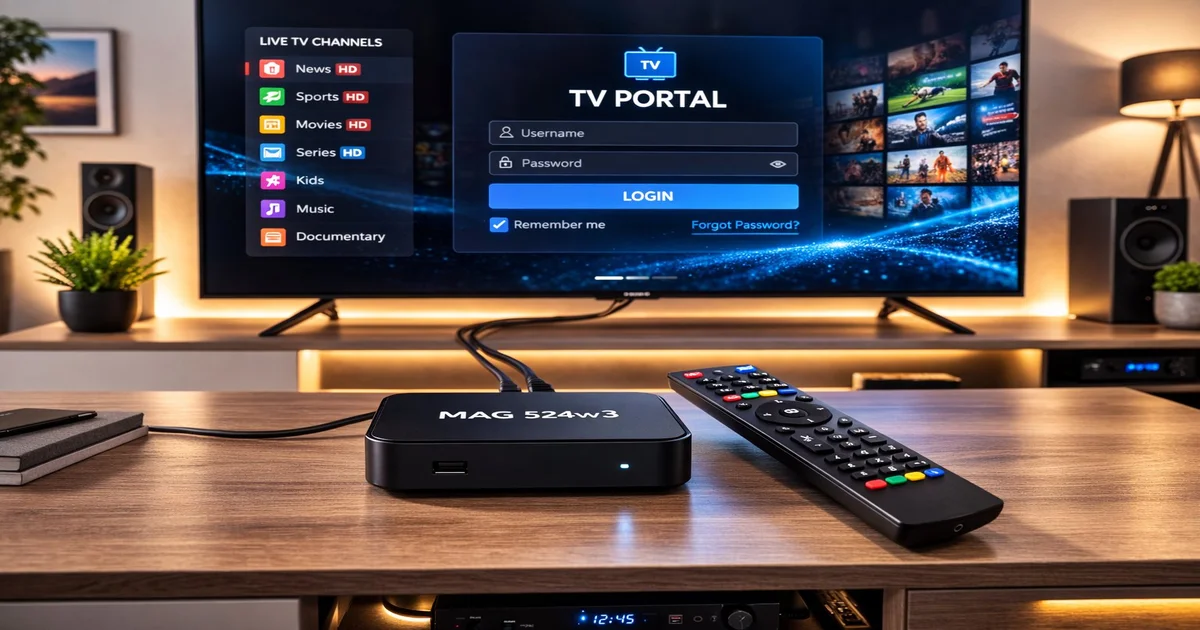
MAG boxes by Infomir are purpose-built set-top boxes designed specifically for IPTV streaming. Unlike general-purpose devices like the Amazon Fire Stick, MAG boxes run a specialised Linux-based operating system optimised for IPTV portal access. This makes them exceptionally stable and reliable for daily IPTV use.
The current lineup includes several models, each targeting different needs and budgets. The MAG 524w3 is the current flagship, featuring a quad-core ARM Cortex-A53 processor, 1 GB RAM, 4 GB internal storage, full 4K HEVC support, dual-band Wi-Fi (2.4/5 GHz), Gigabit Ethernet, and Bluetooth 4.2. This is the recommended model for viewers who want the best possible picture quality and smooth 4K streaming.
The MAG 522w3 offers similar features but at a lower price point, with slightly less processing power while still supporting 4K output. The older MAG 420 remains available as a budget option, supporting up to 1080p resolution with H.265 decoding. For viewers who do not need 4K, the MAG 420 provides excellent value.
| Model | Max Resolution | Wi-Fi | HEVC | RAM |
|---|---|---|---|---|
| MAG 524w3 | 4K (2160p) | Dual-band | Yes | 1 GB |
| MAG 522w3 | 4K (2160p) | Dual-band | Yes | 1 GB |
| MAG 420 | FHD (1080p) | Optional | Yes | 512 MB |
| MAG 322 | FHD (1080p) | No | No | 512 MB |
Setting up a MAG box for the first time is straightforward. Begin by connecting the HDMI cable from the MAG box to your television. Use the included power adapter to connect the device to a power outlet. If you have an Ethernet cable available, connect it from your router to the MAG box's Ethernet port — a wired connection always provides the most stable IPTV experience.
Power on the MAG box and your television. The device boots into the Infomir portal interface within 30-60 seconds. On first boot, you may see a setup wizard that asks you to select your language, time zone, and network settings. Complete these initial steps before proceeding to the portal configuration.
The MAG box comes with a dedicated remote control. Insert the batteries and point the remote at the device. The remote uses infrared communication, so maintain a clear line of sight. If you prefer, many MAG box models support CEC (Consumer Electronics Control), allowing you to use your TV remote to control basic functions like channel switching and volume. Enable CEC in the MAG box settings under System > HDMI CEC.
💡 Pro Tip: Always use a wired Ethernet connection for your MAG box instead of Wi-Fi. IPTV streams, especially HD and 4K, require consistent bandwidth that Wi-Fi may not reliably deliver. A simple Cat5e or Cat6 cable from your router to the MAG box eliminates most buffering issues.
The portal URL is the most critical setting for your MAG box. This URL connects your device to your IPTV provider's server and loads all available channels, the EPG (Electronic Programme Guide), and video-on-demand content. Your IPTV provider will supply this URL when you subscribe.
To configure the portal URL, navigate to Settings (the gear icon) from the main screen. Select Portals from the menu. You will see two portal slots — Portal 1 and Portal 2. In the Portal 1 Name field, enter a descriptive name such as "My IPTV". In the Portal 1 URL field, carefully enter the exact URL provided by your IPTV provider. This URL typically follows the format http://provider-server.com/c/.
After entering the URL, press OK to save. The MAG box will restart the portal. If the URL is correct and your account is active, the portal will load within 10-30 seconds, displaying the channel list and the main interface. If the portal fails to load, double-check the URL for typos, ensure your internet connection is working, and verify with your provider that your MAC address is registered.
Unlike other IPTV devices that use username/password authentication, MAG boxes use MAC address-based authentication. Your MAG box's MAC address is a unique identifier printed on a sticker on the bottom of the device (format: 00:1A:79:xx:xx:xx). You need to provide this MAC address to your IPTV provider when subscribing. The provider registers it in their system, authorising your specific device to access the service.
By default, the MAG box uses DHCP (Dynamic Host Configuration Protocol) to automatically obtain an IP address from your router. For most users, DHCP works perfectly and requires no manual configuration. However, in some cases, a static IP address can provide better stability.
To check or change your network settings, go to Settings > System Settings > Network. Under Ethernet or Wi-Fi, you will see your current configuration. If DHCP is working correctly, you should see an assigned IP address (typically 192.168.x.x), a subnet mask, a gateway address (your router's IP), and DNS servers.
Consider using a static IP if you experience frequent disconnections or if your router has issues with DHCP lease renewal. To set a static IP, switch from DHCP to Manual in the network settings. Enter an IP address outside your router's DHCP range (check your router's settings to identify the range), the subnet mask (usually 255.255.255.0), the gateway (your router's IP), and DNS servers (use 8.8.8.8 and 8.8.4.4 for Google DNS, or 1.1.1.1 for Cloudflare DNS).
💡 Pro Tip: If you use Google DNS (8.8.8.8) or Cloudflare DNS (1.1.1.1) instead of your ISP's default DNS, you may experience faster portal loading times and improved stream reliability. Some ISPs use slow or unreliable DNS servers that can delay IPTV stream resolution.
STB Emu (formerly StbEmu) is an Android application that emulates the MAG box portal experience on non-MAG devices. If you want the MAG portal interface on your Android TV box, Fire Stick, or smartphone, STB Emu is the solution. It uses the same portal URL system as a real MAG box.
To set up STB Emu, download the app from the Google Play Store or sideload it on your Fire Stick. Open the app and go to Settings (swipe down from the top or press the Menu key). Under Profile, enter your portal URL in the Portal URL field. You can also set a custom MAC address if your provider requires a specific one — go to Settings > Profile > MAC address and enter the address provided by your IPTV provider.
STB Emu offers some advantages over a physical MAG box: it runs on hardware you already own, it receives regular updates, and it can be installed on multiple devices. However, a real MAG box typically offers better stability and a more fluid interface because it runs on purpose-built hardware with an optimised operating system.
Keeping your MAG box firmware up to date is important for security, stability, and compatibility with the latest streaming technologies. Infomir releases firmware updates that fix bugs, improve performance, and add new features.
To update your firmware, go to Settings > System Settings > Software Update. The MAG box will check the Infomir update server for available updates. If an update is available, you will see the new version number and a download button. Press OK to begin the download. The update process typically takes 5-10 minutes — do not disconnect the power during this process, as interrupting a firmware update can permanently damage the device.
After the update completes, the MAG box will restart automatically. Your portal settings and preferences are preserved during the update. If you experience any issues after updating, try a factory reset by going to Settings > System Settings > Reset to Factory Defaults. Note that this will erase your portal URL, so have it ready to re-enter.
If the portal fails to load after entering the URL, check the following: verify the URL is typed correctly with no spaces or extra characters. Confirm your internet connection is working by navigating to the built-in web browser. Ensure your MAC address is registered with your provider. Try restarting the MAG box by unplugging the power, waiting 10 seconds, and plugging it back in.
A black screen typically indicates a streaming issue. Check your internet speed — you need at least 10 Mbps for HD channels. Try switching to a different channel to determine if the issue is with one specific channel or all channels. If all channels show a black screen, your subscription may have expired. Contact your IPTV provider to verify your account status.
Buffering on a MAG box is usually caused by insufficient bandwidth or network congestion. Switch from Wi-Fi to Ethernet if possible. Close any other devices that are using heavy bandwidth. If the problem persists during specific times, your ISP may be throttling IPTV traffic — consider using a VPN configured at the router level. You can also try changing your DNS servers to 8.8.8.8 or 1.1.1.1, as slow DNS can contribute to buffering.
Replace the batteries in the remote control. Ensure nothing is blocking the infrared sensor on the front of the MAG box. Try pointing the remote directly at the device from within 3 metres. If the remote still does not work, you can use a USB keyboard as a temporary alternative by connecting it to the USB port on the MAG box.
No, MAG boxes are hardware-only devices. They do not include any channels or content. You need a separate IPTV subscription from a provider like IPTV SmartHD that supplies the portal URL and channel access.
Yes, MAG boxes work with any IPTV provider that supports the Stalker middleware portal system. Most major IPTV providers, including IPTV SmartHD, fully support MAG boxes. Simply enter your provider's portal URL in the device settings.
The MAC address is printed on a sticker on the bottom of your MAG box (format: 00:1A:79:xx:xx:xx). You can also find it in Settings > System Settings > Network > MAC address. Provide this address to your IPTV provider when activating your subscription.
For the best experience, we recommend the MAG 524w3. It supports 4K resolution, has dual-band Wi-Fi, Gigabit Ethernet, and HEVC decoding. If you do not need 4K and want a more affordable option, the MAG 420 provides excellent FHD performance.
Recording capability depends on your IPTV provider's portal implementation. Some providers enable recording through the portal interface, saving recordings to a USB drive connected to the MAG box. Check with your provider whether recording is supported on their portal.
Instant access to 30,000+ channels in 4K. Free 24h trial — no credit card required.
Start Your Free Trial Now