🇬🇧 English
🇫🇷 Français
🇩🇪 Deutsch
🇪🇸 Español
🇮🇹 Italiano
🇳🇱 Nederlands
🇸🇪 Svenska
🇵🇹 Português
🇵🇱 Polski
🇩🇰 Dansk
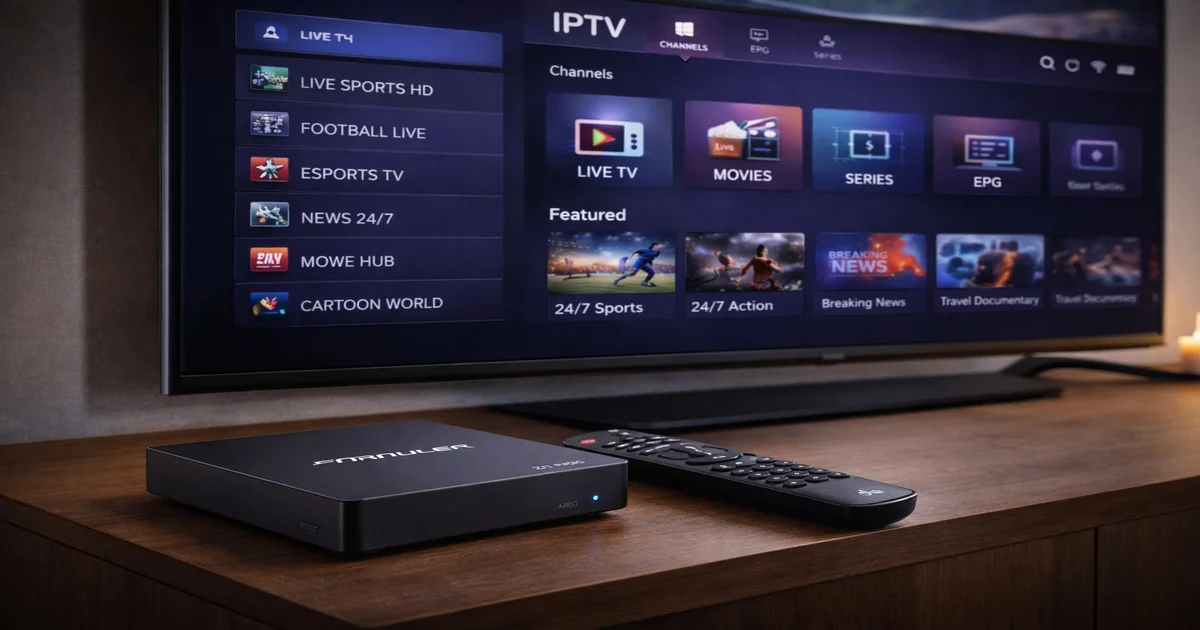
The Formuler Z11 Pro stands as one of the most capable Android-based IPTV streaming boxes available in 2026. Built specifically with IPTV enthusiasts in mind, it combines a powerful Amlogic S905X4 processor with Android 10, delivering smooth 4K HDR playback and a seamless experience with the MyTVOnline 3 app. Unlike generic Android TV boxes, the Z11 Pro ships with MyTVOnline 3 pre-installed and deeply integrated, making it the natural choice for anyone who wants a dedicated, hassle-free IPTV setup.
What truly differentiates the Formuler Z11 Pro from the competition is its purpose-built design. The remote control, the UI, and the firmware are all optimized for live TV consumption — not gaming, not casual browsing, but serious IPTV viewing. Whether you are subscribing to a premium IPTV service or managing your own M3U playlist, this device provides the tools you need out of the box. This guide walks you through every step: from unboxing and hardware connections, to setting up your IPTV subscription, fine-tuning picture quality, and getting the most out of the EPG and favorites system.
Before diving into setup, it is worth understanding exactly what hardware you are working with. The Formuler Z11 Pro is not simply a rebadged Android box — it is a carefully engineered device with specifications chosen specifically to handle the demands of 4K IPTV streaming.
| Component | Specification |
|---|---|
| Processor | Amlogic S905X4 (Quad-core Cortex-A55, 2.0 GHz) |
| RAM | 2 GB DDR4 |
| Storage | 8 GB eMMC |
| Operating System | Android 10 |
| Display Output | 4K HDR / 60 fps via HDMI 2.1 |
| Connectivity | Dual-band Wi-Fi 6 + Gigabit Ethernet + Bluetooth 5.0 |
| USB Ports | 2 × USB 3.0 |
| Video Codecs | H.265 / H.264 / VP9 / AV1 |
| Audio | Dolby Atmos / DTS |
| Power | 12V / 2A |
The Amlogic S905X4 chipset is a significant upgrade over older S905X3 devices. Its four Cortex-A55 cores running at up to 2.0 GHz handle simultaneous channel switching, EPG loading, and background app refreshes without stuttering. The 2 GB of DDR4 RAM is ample for MyTVOnline 3 and a handful of companion apps, though you will want to keep unused apps to a minimum for the smoothest experience. The 8 GB eMMC storage fills up surprisingly quickly if you install many large APKs, so plan accordingly.
The HDMI 2.1 output is the headline feature for picture quality enthusiasts. Combined with HDR10, HLG, and Dolby Vision support (depending on your TV's capabilities), the Z11 Pro delivers visibly richer colors and deeper contrast than older HDMI 2.0 devices. Support for AV1 decoding is a forward-looking addition — more IPTV providers are beginning to encode streams in AV1 to save bandwidth while maintaining quality, and the Z11 Pro handles this natively in hardware rather than straining the CPU with software decoding.
Setting up the Formuler Z11 Pro for the first time is straightforward, but taking a few minutes to do it correctly saves troubleshooting time later. Follow these steps in order:
MyTVOnline 3 (MTO3) is Formuler's proprietary IPTV player and is almost certainly pre-installed on your Z11 Pro. To verify, look for the MTO3 icon on the home launcher screen. If for any reason it is not present — for example, if you performed a factory reset or received an older firmware version — you can reinstall it as follows:
Once MTO3 is installed and open, you will see a clean welcome screen asking you to add your first account. If you are new to IPTV, MTO3 uses the concept of "portals" or "accounts" — each account corresponds to one IPTV subscription. You can store multiple accounts and switch between them easily. On the first launch, tap "Add Account" or the "+" icon to proceed with your subscription setup (detailed in the next section).
MTO3 is also where you manage your EPG (Electronic Program Guide), favorites, VOD library, and recording schedule if your IPTV provider supports those features. Take a moment to explore the interface before adding your subscription — the left sidebar gives access to Live TV, Movies, Series, and Settings.

The most common and reliable method for connecting an IPTV subscription to MyTVOnline 3 is via the Xtream Codes API. Your IPTV provider will have sent you a server URL, a username, and a password — keep these handy before starting.
http://provider-server.com:8080). Enter your username and password in the respective fields.If your IPTV provider offers an M3U URL instead of Xtream Codes credentials, MTO3 supports this as well:
http://provider.com/get.php?username=X&password=Y&type=m3u_plus&output=ts) into the URL field.The Electronic Program Guide (EPG) is what separates a professional IPTV experience from simply watching a stream. MyTVOnline 3's EPG is one of the best implementations available on any IPTV player, pulling schedule data from your IPTV provider's XMLTV feed and matching it to live channels automatically.
To access the EPG at any time, press the "Guide" button on the Formuler MyZ Remote 2. The guide opens in a two-column grid view: channels on the left, program schedule scrolling horizontally. Use the left/right arrow keys to move forward or backward in time (typically up to 7 days ahead). Press OK on any future program to set a reminder or — if your provider supports it — schedule a recording to an attached USB drive.
EPG data usually refreshes automatically every few hours. If your guide appears empty or outdated, go to MTO3 Settings → EPG → Force Refresh. You can also adjust the EPG update interval and time offset (useful if your provider's schedule is in a different timezone than your local clock).
Organizing your favorites is equally important. In MTO3, navigate to any channel, press and hold the OK button, and select "Add to Favorites" from the context menu. You can create multiple favorite groups — for example, one group for sports channels and one for news. To access your favorites quickly, press the "FAV" button on the remote from the Live TV section. Favorites persist across app restarts and even device reboots.
For power users, MTO3 also supports custom channel sorting within favorites. Long-press a channel in your favorites list and drag it to a new position. This lets you place your most-watched channels at the top for instant access without scrolling.
Getting the best possible picture from the Formuler Z11 Pro requires adjusting a few settings both on the device and on your TV. The defaults are reasonable, but these tweaks will give you visibly better results.
Go to Android Settings → Display → Resolution and set the output to 4K (2160p) at 60Hz. Enable "HDR Auto" so the Z11 Pro automatically switches between HDR10 and SDR depending on the content. If your TV supports Dolby Vision, enable it in the same menu. Avoid setting a fixed refresh rate (e.g., 60Hz only) — the "Auto" setting allows the box to match the stream's native frame rate, reducing judder on 24fps movies.
Navigate to Android Settings → Sound → Audio Output and select "Digital Passthrough" (also called "SPDIF/HDMI RAW"). This sends Dolby Atmos and DTS signals unprocessed to your AV receiver or soundbar, which then handles decoding. If you connect directly to a TV without an external audio system, select "PCM" instead — TVs typically cannot decode Dolby Atmos natively and will produce no sound in passthrough mode.
On your router, enable QoS (Quality of Service) and prioritize the Z11 Pro's MAC address for the highest traffic class. This ensures that even when other devices are downloading or streaming, your IPTV device gets uninterrupted bandwidth. On the Z11 Pro itself, you can install the Speedtest app from Google Play (or visit fast.com in the browser) to verify you are getting full gigabit speeds over Ethernet. Aim for at least 50 Mbps for 4K streams.
In MTO3, go to Settings → Player → Buffer Size. The default is usually 3–5 seconds. If you experience occasional freezes with otherwise fast internet, increase this to 8–10 seconds. Conversely, if you notice a long delay when changing channels, reduce the buffer. The "Reconnect on error" option should always be enabled — it automatically re-establishes the stream if your connection momentarily drops, without requiring manual intervention.
How does the Formuler Z11 Pro stack up against other popular streaming devices in 2026? Here is a direct comparison across the features that matter most for IPTV:
| Feature | Formuler Z11 Pro | Fire TV Stick 4K Max | MAG 524W3 | NVIDIA Shield TV Pro |
|---|---|---|---|---|
| Max Resolution | 4K HDR 60fps | 4K HDR 60fps | 4K HDR | 4K HDR 60fps |
| RAM | 2 GB DDR4 | 2 GB | 1 GB | 3 GB |
| Storage | 8 GB eMMC | 8 GB | 4 GB | 16 GB |
| OS | Android 10 | Fire OS 8 | Linux (proprietary) | Android TV 11 |
| Wi-Fi | Wi-Fi 6 dual-band | Wi-Fi 6E | Wi-Fi 5 dual-band | Wi-Fi 6 |
| Price Range | ~€120–€140 | ~€60–€70 | ~€80–€100 | ~€200–€220 |
| Best for IPTV | Excellent (native MTO3) | Good (needs Smarters) | Good (Stalker Portal) | Excellent (flexible) |
The Formuler Z11 Pro wins clearly on IPTV-specific integration — no other device ships with MyTVOnline 3 out of the box, and the Formuler remote is purpose-built for live TV navigation. The NVIDIA Shield TV Pro is more powerful overall but costs nearly twice as much and is primarily designed for gamers and home theater enthusiasts, not IPTV. The Fire TV Stick 4K Max is excellent value but is locked into Amazon's ecosystem, making sideloading IPTV apps more complex. The MAG 524W3 uses a Linux-based Stalker Middleware system that works well but lacks the app flexibility of Android.
The Formuler Z11 Pro is one of the most complete IPTV streaming boxes you can buy in 2026. From its purpose-built MyTVOnline 3 integration and Amlogic S905X4 processing power to its HDMI 2.1 output and native Dolby Atmos support, every aspect of the device is designed to deliver the best possible live TV experience. Whether you are setting up a single box for your living room or equipping multiple rooms, the Z11 Pro provides the reliability and feature depth that serious IPTV viewers demand.
Ready to get started? IPTV SmartHD offers a premium IPTV subscription fully compatible with the Formuler Z11 Pro and MyTVOnline 3. Request your free trial today and experience 10,000+ channels, full 4K HDR streams, and a 7-day EPG — all optimized for your Formuler device.
Instant access to 30,000+ channels in 4K. Free 24h trial — no credit card required.
Start Your Free Trial Now