🇬🇧 English
🇫🇷 Français
🇩🇪 Deutsch
🇪🇸 Español
🇮🇹 Italiano
🇳🇱 Nederlands
🇸🇪 Svenska
🇵🇹 Português
🇵🇱 Polski
🇩🇰 Dansk
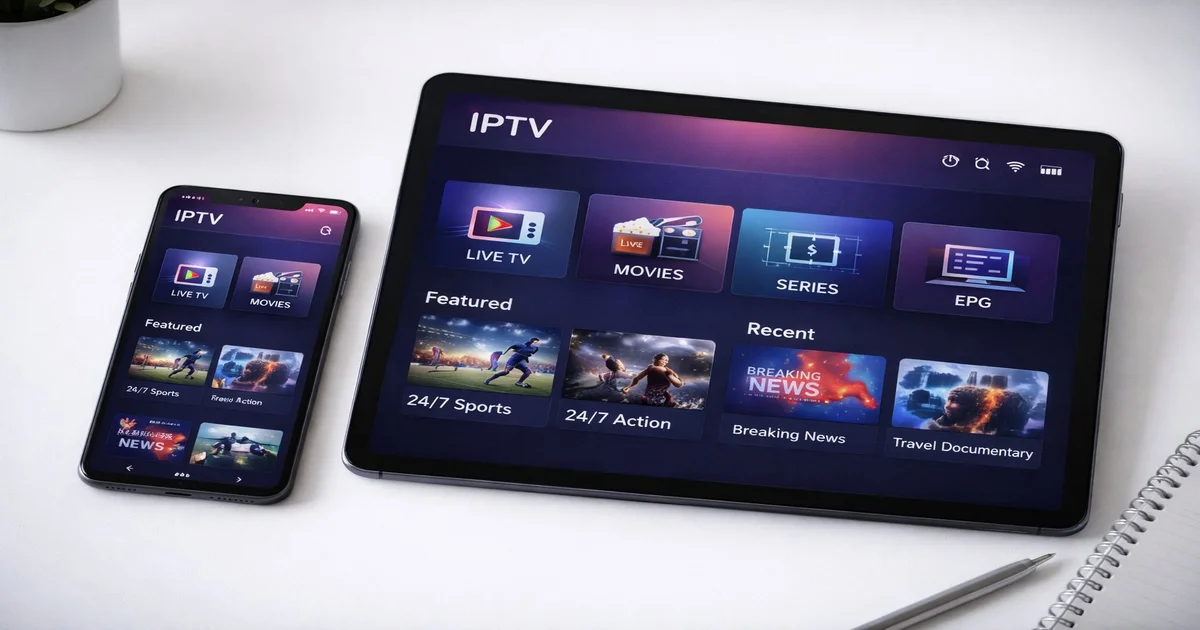
IPTV Smarters Pro is one of the most popular and versatile IPTV player applications available in 2026. It serves as a media player that connects to your IPTV subscription, allowing you to watch live TV channels, on-demand movies, TV series, and access electronic program guides (EPG) — all through a single, polished interface. The app is available on Android, iOS, Windows, macOS, Smart TVs (Samsung, LG), Amazon Fire Stick, and Android TV boxes.
What sets IPTV Smarters Pro apart from other IPTV players is its combination of user-friendly design and powerful features. It supports both Xtream Codes API and M3U playlist formats, offers built-in EPG support, multi-user profiles, parental controls, and a clean category-based navigation system. Whether you are a beginner setting up IPTV for the first time or an experienced user looking for advanced functionality, IPTV Smarters Pro delivers a professional-grade experience.
The app is developed by WHMCS Smarters and has been continuously updated throughout 2025 and 2026 with new features, performance improvements, and bug fixes. The latest version supports 4K HDR playback, adaptive bitrate streaming, and hardware-accelerated decoding on supported devices, making it a future-proof choice for any IPTV setup.
The installation process varies slightly depending on your device. Below we cover the most common platforms with step-by-step instructions for each.
Open the Google Play Store and search for "IPTV Smarters Pro." Tap Install and wait for the download to complete (approximately 25 MB). Once installed, open the app and you will see the login screen. If the app is not available in your region's Play Store, you can download the APK directly from the developer's official website and sideload it by enabling "Install from Unknown Sources" in your device settings.
Open the Apple App Store and search for "IPTV Smarters." Download and install the app. Note that due to Apple's stricter app policies, the iOS version may have slightly fewer features than the Android version. After installation, open the app and proceed to the login screen.
Search for "IPTV Smarters" in the Amazon App Store directly on your Fire Stick. If it does not appear, use the Downloader app (available in the Amazon App Store) to sideload the APK. Enable "Apps from Unknown Sources" in Settings → My Fire TV → Developer Options first. Download the APK using the URL from the developer's website, install it, and launch from your apps list.
On Samsung TVs, open the Samsung App Store and search for "IPTV Smarters." On LG TVs, open the LG Content Store. Download and install the app. On some older Smart TV models, you may need to adjust your TV's region settings to find the app in the store.
After installing IPTV Smarters Pro, you need to connect it to your IPTV subscription. The app supports two connection methods: Xtream Codes API and M3U Playlist URL. Your IPTV provider will specify which credentials you need.
On the login screen, select "Login with Xtream Codes API." Enter the following information provided by your IPTV service: Server URL (e.g., http://provider.com:8080), Username, and Password. Give your profile a name (e.g., "My IPTV") and tap "Add User." The app will authenticate with the server and load your channel list, VOD library, and EPG data. This is the recommended method because it provides the richest feature set including catch-up TV, series tracking, and account info.
If your provider only offers an M3U URL, select "Load Your Playlist or File" on the login screen. Choose "M3U URL" and paste the full playlist URL provided by your IPTV service. Give it a name and tap "Add User." The app will download and parse the playlist. Note that M3U connections typically lack EPG and advanced features available with Xtream Codes.
Once logged in, IPTV Smarters Pro presents a clean home screen with several main sections: Live TV, Movies (VOD), TV Series, Catch-Up, and Multi-Screen. Each section is organized into categories defined by your IPTV provider.
The Live TV section displays all available channels grouped by category (Sports, Entertainment, News, Kids, etc.). Tap any channel to start streaming. The EPG overlay shows current and upcoming programs. You can add channels to favorites by long-pressing on them, making it easy to create a personalized channel lineup of your most-watched channels.
The Movies section provides an on-demand library organized by genre (Action, Comedy, Drama, Horror, etc.). Each movie listing includes a poster, description, rating, and year. Tap to play. The VOD library is updated regularly by your IPTV provider and typically includes the latest theatrical releases alongside a deep catalog of classic films.
The Series section organizes TV shows by season and episode. IPTV Smarters Pro tracks your watch progress, so you can resume where you left off. This is particularly useful for binge-watching series with many episodes, as you never lose your place even if you switch between devices.
If your EPG does not load automatically, go to Settings → EPG and enter your EPG URL (provided by your IPTV service) in XMLTV format. Set the refresh interval to 12 or 24 hours. A working EPG dramatically enhances the viewing experience by showing program schedules, descriptions, and allowing you to plan your viewing in advance. The EPG grid view displays multiple channels and time slots simultaneously.
Long-press any channel and select "Add to Favorites" to build your personalized channel list. You can create multiple favorite groups (e.g., "Sports," "Movies," "News") for quick access. Favorites are synced across sessions and survive app updates, ensuring your customized setup is preserved.
Navigate to Settings → Parental Controls to set a PIN code that restricts access to specific channel categories. This is essential for households with children, allowing you to block adult content or any channels you deem inappropriate. The PIN is required each time someone attempts to access a locked category.
IPTV Smarters Pro supports multi-screen mode, which displays up to 4 channels simultaneously on a single screen. This is ideal for sports fans during busy match days when multiple games are playing at the same time. Each window plays independently and you can tap any window to make it full screen with audio.
If your IPTV provider supports catch-up (also known as timeshift), you can watch programs that aired in the past 24–72 hours. This feature is accessible through the EPG — navigate to a past program and select "Catch Up" to replay it. This is invaluable for viewers who miss live broadcasts due to work schedules or time zone differences.
If you experience playback issues with the built-in player, IPTV Smarters Pro allows you to use external players like VLC or MX Player. Go to Settings → Player and select your preferred external player. This can resolve codec compatibility issues and provide additional playback controls.
| Feature | IPTV Smarters Pro | TiviMate | Smart IPTV |
|---|---|---|---|
| Price | Free / Premium | Premium ($5.99/yr) | €5.49 one-time |
| Xtream Codes | Yes | Yes | No |
| M3U Support | Yes | Yes | Yes |
| Multi-Screen | Up to 4 | Up to 9 | No |
| Catch-Up TV | Yes | Yes | Limited |
| EPG | Built-in | Advanced | XMLTV |
| Platforms | All major | Android only | Smart TV only |
| Best For | All users | Android power users | Smart TV users |
Clear the app cache and data from your device settings. On Android: Settings → Apps → IPTV Smarters Pro → Storage → Clear Cache / Clear Data. On Fire Stick: Settings → Applications → Manage Installed Applications → IPTV Smarters → Clear Cache. If crashes persist, uninstall and reinstall the latest version.
Verify your subscription credentials are entered correctly. Check that your IPTV subscription is active and not expired. Ensure your internet connection is working. Try switching between Xtream Codes and M3U connection methods to see if one works better. Contact your IPTV provider if no channels load with any method.
Switch from WiFi to Ethernet. Increase the buffer size in Settings → Player → Buffer Size. Try using ExoPlayer or VLC as the video engine. Lower the stream quality if bandwidth is limited. Change DNS to Google (8.8.8.8) or Cloudflare (1.1.1.1). If buffering only occurs at certain times, consider using a VPN to bypass ISP throttling.
IPTV Smarters Pro offers a free version with basic features. The premium version (IPTV Smarters Pro) removes ads and unlocks advanced features like multi-screen viewing, custom player settings, and enhanced EPG functionality. The premium version is a one-time purchase on most platforms.
No. IPTV Smarters Pro is a player application only — it does not provide any channels or content. You need a separate IPTV subscription from a provider like IPTV SmartHD, which gives you the server credentials to enter into the app. The app simply connects to your provider's servers and displays the content they deliver.
Yes, you can install the app on as many devices as you want. However, your IPTV subscription may limit the number of simultaneous connections. Most providers allow 1–4 concurrent streams depending on your subscription plan. Check with your provider for their specific multi-device policy.
First, ensure your provider includes EPG in your subscription. Go to Settings → EPG and verify that the EPG URL is correctly entered. Try manually refreshing the EPG data. If using M3U instead of Xtream Codes, EPG availability depends on whether your provider embeds EPG data in the playlist file. Switching to Xtream Codes typically resolves EPG issues.
IPTV Smarters Pro downloaded from official sources (Google Play Store, Apple App Store, Amazon App Store) is safe. The app itself is a legitimate media player. As with any IPTV setup, the legality depends on the content provider you use. Always choose licensed, reputable IPTV providers that have proper broadcasting rights for their content.
Instant access to 30,000+ channels in 4K. Free 24h trial — no credit card required.
Start Your Free Trial Now