Come Installare IPTV su Samsung Smart TV (2026) – Guida Completa
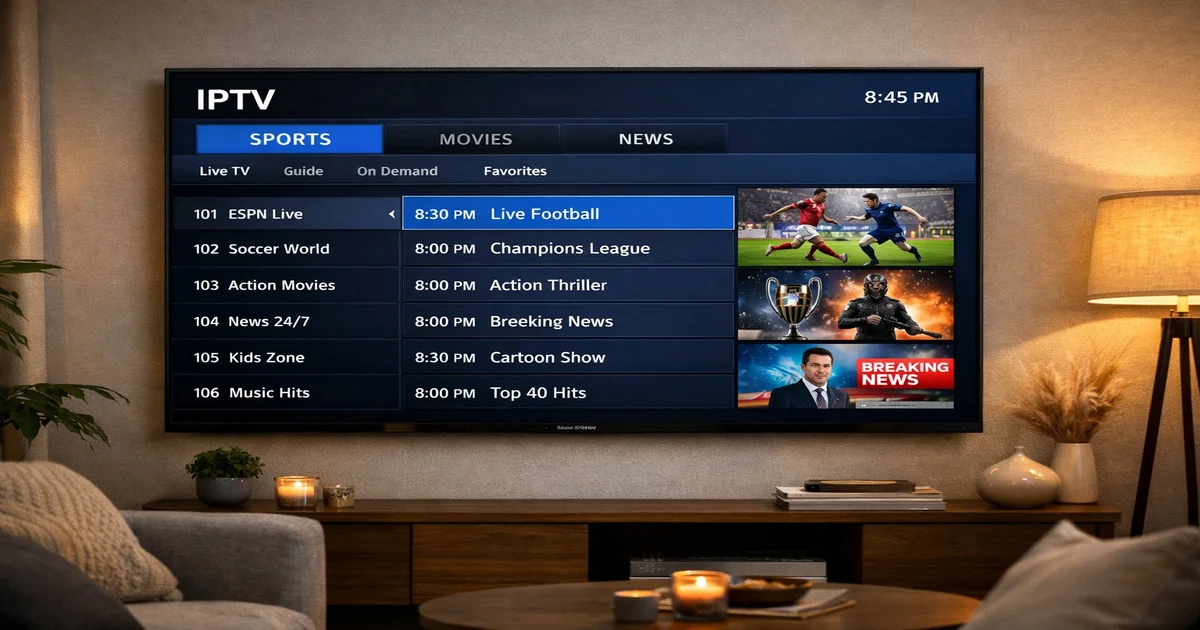
Setting up IPTV on your Samsung Smart TV has never been easier. Whether you own a 2022, 2023, 2024, or 2025 model running Tizen OS, this guide walks you through every step — from installing an IPTV app to entering your subscription details and watching live TV in 4K.
📋 Indice
What You Need Before You Start
Before installing IPTV on your Samsung Smart TV, make sure you have: a Samsung Smart TV (2018 or newer) with Tizen OS, a stable internet connection (25+ Mbps for 4K), a valid IPTV subscription with M3U URL or Xtream Codes, and a Samsung account logged in on your TV.
Samsung's Tizen OS does not natively support .m3u files, so you'll need a dedicated IPTV app. The most popular are IPTV Smarters Pro and SS IPTV — both available in Samsung's Smart Hub.
Method 1: IPTV Smarters Pro on Samsung TV
IPTV Smarters Pro is the most popular IPTV player for Samsung Smart TVs. It supports M3U URLs, Xtream Codes API, and multi-screen playback. Install it by pressing the Home button, opening Apps, searching for "IPTV Smarters" and clicking Install.
- Press the Home button on your Samsung remote.
- Open the Samsung Apps (Smart Hub).
- Search for "IPTV Smarters" in the search bar.
- Select the app and click Install.
- Open the app from your home screen.

Method 2: SS IPTV App
SS IPTV is a lightweight alternative available in the Samsung Store. It supports both M3U playlists and Xtream Codes, with a clean interface optimized for Samsung's remote control. Install it the same way: search "SS IPTV" in the Smart Hub.
Step-by-Step Setup Guide
Once your IPTV app is installed, follow these steps to add your subscription:
- Open IPTV Smarters or SS IPTV.
- Select "Add New User" or "Add Playlist".
- Choose your input method: M3U URL or Xtream Codes.
- Enter your IPTV SmartHD credentials.
- Click "Add User" or "Load Playlist".
- Browse your channels and enjoy live TV, VOD, and series.
Entering Your IPTV Subscription
After subscribing to IPTV SmartHD, you will receive an email with your credentials. Enter them in your IPTV app using either the M3U URL method or Xtream Codes.
M3U URL Method
The simplest method. In IPTV Smarters, select "Add User via M3U URL" and paste your M3U link. Channels load automatically.
Xtream Codes Method
Enter the server URL, username, and password. This supports EPG (Electronic Program Guide) for a full TV-like experience.
Troubleshooting Common Issues
If you experience buffering or channels not loading:
- Check your internet speed — aim for 25+ Mbps for 4K.
- Restart your Samsung TV and router.
- Re-enter your subscription credentials.
- Try switching from IPTV Smarters to SS IPTV.
- Contact IPTV SmartHD support via WhatsApp.
Recommended Settings for Samsung TV
For the best viewing experience:
- Set video player to ExoPlayer in IPTV Smarters settings.
- Enable hardware decoding for 4K content.
- Set buffer size to "Large" to reduce stuttering.
- Use 5GHz WiFi or ethernet for maximum stability.
Conclusion
Installing IPTV on your Samsung Smart TV takes less than 5 minutes with the right app and subscription. IPTV SmartHD offers 30,000+ channels in 4K, stable servers with 99.9% uptime, and a free 24-hour trial so you can test before committing.
🔗 Articoli correlati
📌 Link utili
Ready to Watch IPTV on Samsung TV?
Instant access to 30,000+ channels in 4K. Free 24h trial — no credit card required.
Start Your Free Trial NowView PlansOrder Now