IPTV EPG Guide — What It Is and How to Set It Up in 2026
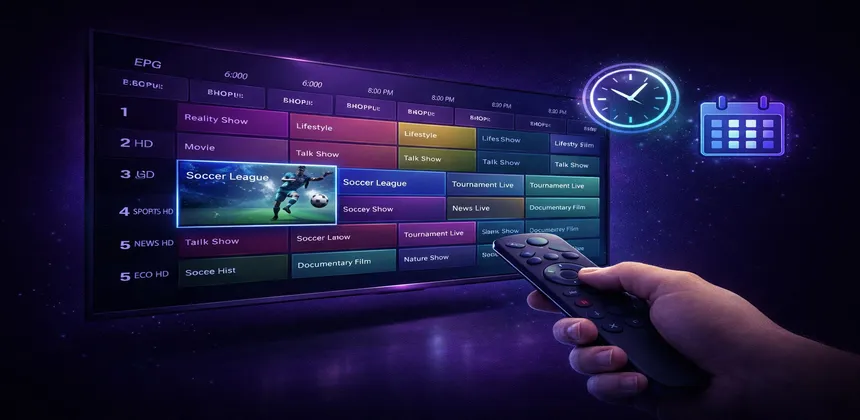
If you have ever used cable or satellite TV, you are familiar with the TV guide — that grid showing what is on every channel right now and what is coming up next. In the IPTV world, this is called the EPG (Electronic Program Guide), and it is one of the features that transforms a basic IPTV experience into something that feels polished and professional. Without EPG, you are essentially flipping through numbered channels blindly. With EPG, you have a complete, searchable program schedule at your fingertips. This guide explains everything you need to know about EPG in 2026.
Table of Contents
What Is EPG?
EPG stands for Electronic Program Guide, and it is essentially a digital TV guide that displays channel schedules in an organized, easy-to-navigate format. Think of it as the modern equivalent of the printed TV listings that used to come in newspapers — except it is interactive, always up to date, and built right into your IPTV app.
An EPG displays a wealth of information for each channel in your lineup. You can see the program that is currently airing, along with a progress bar showing how far along it is. You can also browse upcoming programs for the next several hours or even days, depending on how much data your provider supplies. Each program listing typically includes the show title, a brief description, the genre or category, and the exact start and end times.
In traditional cable and satellite TV, the EPG is built into the set-top box and pulls data from the broadcast signal itself. With IPTV, the concept is the same but the delivery mechanism is different. EPG data for IPTV is stored on a server in a standardized format called XMLTV (an XML-based format specifically designed for TV listings). Your IPTV application downloads this data — either automatically through an API or manually via a URL you provide — and then maps each program listing to the corresponding channel in your playlist. The result is a familiar, grid-style guide that makes your IPTV service feel just like traditional TV, only better.
Why EPG Matters for IPTV Users
You might wonder whether EPG is really necessary. After all, you can just browse your channel list and see what is playing. But once you start using a well-configured EPG, going back to a bare channel list feels like navigating a city without a map. Here is why EPG makes such a difference:
- Effortless navigation: Instead of surfing through hundreds of channels one by one, you can scan the EPG grid and instantly see what is airing across all your channels. This is especially valuable when you have thousands of channels in your subscription — finding something to watch takes seconds rather than minutes.
- Planning ahead: EPG lets you see what is coming up in the next several hours or even days. Want to know when the next Champions League match airs? Just scroll forward in the EPG and find it without Googling schedules.
- Program information: Each listing includes descriptions, genres, episode numbers, and sometimes ratings. This gives you context about what you are watching or considering — no more guessing what a show is about based on its title alone.
- Catch-up integration: If your IPTV plan supports catch-up TV, the EPG becomes even more powerful. Past programs appear in the guide with a "replay" indicator, and you can simply click on any past show to start watching it from the beginning. The EPG essentially becomes your personal DVR interface.
- Search functionality: Most IPTV apps with EPG support also include a search feature that lets you find specific shows, movies, or events across all channels. Looking for a specific football match or a particular movie? Search the EPG and it will tell you exactly when and where it airs.
How EPG Works with IPTV Smart HD
At IPTV Smart HD, we believe EPG should be a standard feature, not a premium add-on. That is why EPG is included on every single plan at no extra cost — from our Standard plan all the way up to VIP Gold. Here is how our EPG implementation works:
- Automatic data refresh: Our EPG data is updated automatically every 24 hours, so your program guide always reflects the latest schedules. You do not need to manually refresh or re-download anything.
- Extensive coverage: Our EPG covers over 90% of all channels in your subscription with accurate scheduling data. This includes international channels across all major languages and regions.
- Premium plan (EPG + 2-day catch-up): On our Premium plan, EPG works hand-in-hand with 2-day catch-up. You can click on any program that aired in the past 48 hours and replay it instantly.
- VIP Gold plan (EPG + 6-day catch-up + anti-freeze): Our top-tier plan extends catch-up to a full 6 days and includes anti-freeze technology for the smoothest possible streaming experience. Combined with EPG, you essentially have a week-long DVR built into your subscription.
- Dual delivery method: EPG data is delivered via the Xtream Codes API (automatic) or via a dedicated XMLTV URL (for manual configuration). The Xtream Codes method is the simplest — when you log in with your Xtream Codes credentials (server URL, username, password), the EPG loads automatically without any additional setup.
When using Xtream Codes login, EPG loads automatically — no manual URL needed. This is the method we recommend for most users, as it eliminates the possibility of configuration errors and ensures the EPG data is always correctly mapped to your channels.
How to Set Up EPG on Different Apps
The setup process varies depending on which IPTV app you use. Below are step-by-step instructions for the most popular players. For a comprehensive guide on setting up IPTV Smarters specifically, check out our IPTV Smarters Pro setup guide.
IPTV Smarters Pro
IPTV Smarters is the most widely used IPTV player, and its EPG setup is straightforward:
- Open the app and go to Settings > EPG.
- If you are using Xtream Codes login, the EPG loads automatically — no further action is needed. The app pulls EPG data directly from the server using your credentials.
- If you are using an M3U playlist, you need to paste your EPG URL in the EPG field when adding or editing your playlist.
- Set the refresh interval to 24 hours (recommended) to keep data current without unnecessary server requests.
- Wait a minute or two for the initial EPG data to download, then navigate to any channel to see the program guide.
TiviMate
TiviMate is widely regarded as having the best EPG interface of any IPTV player, especially on Android TV and Fire Stick:
- Go to Settings > EPG > Add EPG source.
- Paste your XMLTV URL and save. Alternatively, if you added your subscription via Xtream Codes login, the EPG is loaded automatically.
- If program times appear wrong, enable "EPG shift" in the EPG settings and adjust by the appropriate number of hours to match your timezone.
- TiviMate displays a beautiful full-screen grid view that you can scroll through with your remote — it genuinely feels like a premium cable TV experience.
GSE Smart IPTV
GSE Smart IPTV handles EPG integration smoothly across iOS, Android, and Apple TV:
- Go to Remote Playlists and add your playlist along with the EPG URL.
- The app automatically parses the EPG data and maps it to your channels.
- An EPG tab appears automatically in the channel view, letting you browse current and upcoming programs.
Kodi (PVR IPTV Simple Client)
Kodi is a powerful media center that supports EPG through its PVR (Personal Video Recorder) add-on system:
- Navigate to Add-ons > PVR clients > PVR IPTV Simple Client and install it.
- Open the add-on settings and go to the EPG Settings tab.
- Set the XMLTV URL location to "Remote Path (Internet address)" and paste your EPG URL.
- Set the EPG update interval to 24 hours.
- Restart Kodi to load the EPG data. The TV guide will appear under the TV section of the main menu.
EPG on Different Devices
EPG works on virtually every device that supports IPTV, but the experience varies depending on your hardware and chosen app. Here is a breakdown of what to expect on each platform:
- Smart TV (Samsung/LG): EPG works well in apps like IPTV Smarters and Smart IPTV. Samsung Tizen and LG webOS both support these apps natively. The large screen makes the EPG grid particularly enjoyable to browse.
- Amazon Fire Stick: TiviMate delivers the best EPG experience on Fire Stick by far. Its grid-style guide is fast, responsive, and looks fantastic on a big screen. IPTV Smarters is also available and works well if you prefer a simpler interface.
- Android/iOS: Both IPTV Smarters and GSE Smart IPTV display EPG beautifully on mobile devices. The smaller screen means you see fewer channels at once, but the touch interface makes scrolling through the guide intuitive.
- Apple TV: iPlayTV and GSE Smart IPTV both support EPG on Apple TV. iPlayTV in particular has an excellent EPG grid view that was designed specifically for the tvOS interface and Siri Remote navigation.
- MAG Box: EPG is built directly into the MAG portal interface. There is no setup needed — the portal automatically loads EPG data from the server. Simply press the EPG button on your remote to access the program guide.
- Windows/Mac: VLC does not support EPG, so avoid it if the program guide is important to you. Instead, use IPTV Smarters desktop version or MyIPTV Player (available on the Microsoft Store) for a full EPG experience on your computer.
Common EPG Problems and Fixes
EPG is generally reliable, but occasionally you may encounter issues. Here are the most common problems and how to resolve them quickly:
No EPG Data Showing
This is the most frequently reported EPG issue. If your program guide is completely empty:
- Check the EPG URL: Make sure you have entered the correct XMLTV URL without any typos or extra spaces. Even a single wrong character will prevent the data from loading.
- Force a manual refresh: Go to your app's EPG settings and tap the refresh or reload button. Sometimes the initial automatic download fails silently.
- Wait for the first load: The very first EPG download can take 2 to 5 minutes, especially if you have a large channel list (10,000+ channels). Be patient on the initial setup.
- Switch to Xtream Codes: If you are using M3U with a manual EPG URL and having problems, try switching to the Xtream Codes login method instead. It handles EPG mapping automatically and is far more reliable.
Wrong Times / Timezone Offset
If program times in your EPG do not match your local time:
- Use the EPG time shift setting in your app. This is usually found under EPG settings and lets you adjust by a certain number of hours (positive or negative).
- Most apps display this as a slider or input field labeled "EPG Shift" or "Time Offset." Adjust it until the current program matches what is actually airing.
- Make sure your device's system clock and timezone are set correctly, as some apps rely on the device time for calculations.
Missing Channels in EPG
If some channels show EPG data while others do not:
- This is normal and expected. Some niche, regional, or newly added channels may not have EPG data available yet. Major international channels and popular networks almost always have full EPG coverage.
- EPG coverage depends on the data sources your provider uses. At IPTV Smart HD, we cover over 90% of channels, which is among the highest in the industry.
EPG Not Updating
If your EPG data seems stale or outdated:
- Check your internet connection — the app needs to download fresh data from the server.
- Clear the app cache in your device settings, then reopen the app.
- As a last resort, remove your playlist entirely and re-add it. This forces a complete fresh download of both channel data and EPG.
Slow EPG Loading
If the EPG takes a very long time to load:
- Large channel lists (20,000+ channels) naturally take longer to process. The first load can take 2 to 5 minutes — subsequent loads are typically faster because the app caches the data.
- Make sure you are on a stable internet connection. A slow or intermittent connection will significantly increase loading times.
- Some apps like TiviMate allow you to set EPG loading to happen in the background, so you can start watching channels immediately while the guide data downloads.
Frequently Asked Questions
Is EPG free with IPTV Smart HD?
Yes, EPG is included on all IPTV Smart HD plans at no additional cost. Whether you are on our Standard, Premium, or VIP Gold plan, you get full EPG access with automatic daily updates covering over 90% of channels.
Do I need to configure EPG manually?
No, if you use the Xtream Codes login method (server URL, username, and password), the EPG loads automatically with no manual configuration required. You only need to enter an XMLTV URL manually if you are using the M3U playlist method.
Why is my EPG showing wrong times?
This is almost always caused by a timezone mismatch between the EPG data and your device. The fix is simple: go to your app's EPG settings and use the "EPG shift" or "time offset" feature to adjust by the appropriate number of hours until the times match your local timezone.
Can I use EPG to record programs?
EPG combined with catch-up TV lets you replay past programs directly from the guide — simply click on a past program to watch it from the beginning. For actual recording, TiviMate on Nvidia Shield supports saving streams to external storage. Note that recording capabilities depend on both the app and the device you are using.
Which app has the best EPG?
TiviMate is widely considered the best IPTV app for EPG on Android TV and Amazon Fire Stick, thanks to its beautiful grid interface and advanced features. For cross-platform compatibility (iOS, Android, Smart TV, Windows, Mac), IPTV Smarters Pro is the most versatile option with solid EPG support on every platform.
Conclusion
EPG is one of those features that you do not fully appreciate until you start using it. It transforms IPTV from a basic channel list into a complete, professional TV experience with searchable schedules, program descriptions, and catch-up integration. Setting it up is straightforward — especially if you use the Xtream Codes login method, which handles everything automatically.
At IPTV Smart HD, EPG is included on every plan because we believe a great program guide should be standard, not optional. Combined with our catch-up TV feature on Premium and VIP Gold plans, you get a viewing experience that genuinely rivals (and often surpasses) traditional cable and satellite services. To learn more about what makes a great IPTV service, check out our guide on the best IPTV features or our comprehensive what is IPTV article.
Ready to Experience IPTV with Full EPG?
Try IPTV SmartHD free — 30,000+ channels with EPG included on every plan.
Free TrialRelated Articles
- Best IPTV Features You Should Look For
- IPTV Smarters Pro — Complete Setup Guide
- What Is IPTV? Everything You Need to Know
- IPTV SmartHD Plans & Pricing