
🇬🇧 English
🇫🇷 Français
🇩🇪 Deutsch
🇪🇸 Español
🇮🇹 Italiano
🇳🇱 Nederlands
🇸🇪 Svenska
🇵🇹 Português
🇵🇱 Polski
🇩🇰 Dansk
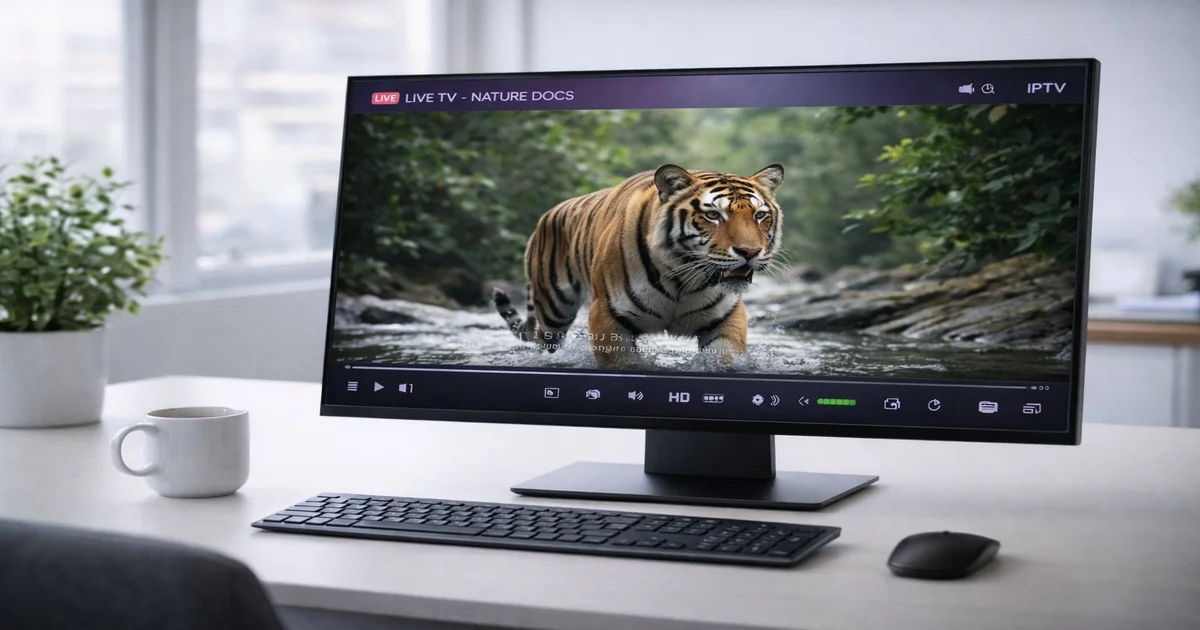
While most IPTV guides focus on dedicated set-top boxes and smart TV apps, millions of users prefer to watch their IPTV subscriptions on a Windows PC or Mac. Whether it is a living room PC connected to a large monitor, a gaming rig doubling as an entertainment center, or a MacBook at a hotel, desktop IPTV apps offer a level of flexibility and control that dedicated hardware simply cannot match. You can run multiple streams side by side, use keyboard shortcuts, record content to your local drive, and manage complex EPG data with the ease of a full desktop environment.
However, not all Windows and Mac apps handle IPTV equally well. Some are designed primarily as generic media players with IPTV tacked on; others were built from the ground up for live TV consumption. In this guide, we review the five best IPTV players for Windows in 2026 — VLC, IPTV Smarters Pro, MyIPTV Player, Kodi, and Perfect Player — plus the best options for macOS. For each player, we cover installation, configuration with both Xtream Codes and M3U, and an honest assessment of strengths and weaknesses.
All of these players are compatible with any standard IPTV subscription that provides an M3U URL or Xtream Codes credentials. If you need a subscription to test with, IPTV SmartHD offers 10,000+ channels with a free trial — details at the end of this guide.
VLC Media Player from VideoLAN is arguably the world's most popular open-source media player, and it doubles as a surprisingly capable IPTV client. It is completely free, runs on Windows, macOS, Linux, Android, and iOS, and requires zero account creation. For users who just want to try IPTV quickly without installing a dedicated app, VLC is the logical first stop.
Follow these steps to get VLC working with your IPTV subscription:
http://provider.com/get.php?username=X&password=Y&type=m3u_plus). Click Play. VLC will download the playlist and begin streaming the first channel.VLC's default settings are not optimized for IPTV streaming. Apply these tweaks for a significantly better experience:
Network caching: Go to Tools → Preferences → Show Settings: All → Input/Codecs → Advanced. Find "Network Caching (ms)" and increase it from the default 1000 ms to 3000–5000 ms. This creates a larger buffer that absorbs network jitter and reduces freezing. Click Save and restart VLC.
Hardware decoder: In Tools → Preferences → Input/Codecs → Video Codecs → FFmpeg, set "Hardware decoding" to "DirectX (DXVA2)" on Windows or "VideoToolbox" on Mac. This offloads video decoding to your GPU, reducing CPU usage and enabling smooth 4K playback on capable hardware.
Snapshot folder: In Tools → Preferences → Video, set a snapshot folder so you can quickly capture screenshots of program information or schedules using the snapshot shortcut (Shift+S by default).
Pros: Free, open-source, cross-platform, handles nearly every codec, no account required, excellent for quick testing.
Cons: No native Xtream Codes support, no built-in EPG, no favorites management, basic playlist UI not suited for large channel lists.

IPTV Smarters Pro is one of the most popular dedicated IPTV players available, and its Windows version (available via the Microsoft Store) offers a polished, full-featured interface with native support for Xtream Codes, M3U playlists, EPG, VOD, and Series. It is the closest Windows equivalent to what you would find on a dedicated IPTV box like Formuler.
http://provider.com:8080).Once loaded, IPTV Smarters Pro presents a clean dashboard with separate tabs for Live TV, Movies, Series, and Catch-Up. The EPG is displayed inline with channels, making it easy to see what is playing now and what is coming next. You can create custom channel groups, add channels to favorites with a single click, and even set parental controls for specific content categories.
Pros: Full Xtream Codes and M3U support, excellent EPG, VOD/Series tabs, professional UI, catch-up support.
Cons: Microsoft Store only (no direct download), some advanced features may require payment.
MyIPTV Player is a lightweight, well-designed IPTV player available exclusively through the Microsoft Store. It targets users who want a clean, ad-free experience without the feature complexity of IPTV Smarters. It supports M3U playlists, a built-in EPG (via XMLTV URLs), and channel favorites — covering everything the average IPTV user needs on a daily basis.
MyIPTV Player does not support Xtream Codes natively, which means you will need your provider's M3U URL. Most providers that offer Xtream Codes also provide an M3U URL — check your provider's welcome email or control panel for both formats. The app's interface is clean and intuitive, making it a good choice for less technical users who find IPTV Smarters overwhelming.
/xmltv.php).After loading, channels are organized in the left sidebar by group (the groups come from your M3U file). Click any channel to begin playback. The EPG appears as a strip below the video, showing current and upcoming programs. You can add channels to favorites by clicking the star icon during playback.
Pros: Clean Microsoft Store app, ad-free, EPG support, easy setup.
Cons: No Xtream Codes support, limited customization, no VOD or Series management.
Kodi is the most powerful and customizable media center application available for Windows and Mac. With the PVR IPTV Simple Client add-on, it transforms into a full-featured IPTV player with EPG, recording support, channel groups, and a sleek television-style interface designed for use with a remote control or game controller. However, this power comes at the cost of a steeper learning curve than simpler apps like VLC or MyIPTV Player.
Perfect Player is a dedicated IPTV application that has built a loyal following among power users for its highly customizable interface and robust support for both M3U and Xtream Codes. Originally developed for Android, the Windows version (available as a direct download from the developer's website) offers a television-style grid interface that feels closer to a set-top box experience than most PC apps.
Perfect Player's key differentiator is its granular control: you can customize the channel grid density, EPG display format, buffer size per stream, video renderer (use MPC-HC or LAV filters for maximum codec compatibility), and keyboard/remote control bindings. It handles extremely large M3U playlists (50,000+ channels) without performance degradation, making it the top choice for users who manage multiple large IPTV subscriptions.
Perfect Player is best suited for technically proficient users who want the deepest level of IPTV customization available on a Windows PC. It is not the easiest app to configure, but the results — a butter-smooth, highly responsive IPTV interface — justify the initial setup effort for enthusiast users.
| Player | Free | M3U | Xtream | EPG | VOD/Series | Difficulty | Best For |
|---|---|---|---|---|---|---|---|
| VLC | Yes | Yes | No | No | No | Easy | Quick testing |
| IPTV Smarters Pro | Yes* | Yes | Yes | Yes | Yes | Easy | All-in-one daily use |
| MyIPTV Player | Yes | Yes | No | Yes | No | Easy | Simple, clean setup |
| Kodi + PVR | Yes | Yes | No | Yes | Via add-ons | Advanced | Power users, PVR |
| Perfect Player | Yes | Yes | Yes | Yes | Yes | Advanced | Large lists, custom UI |
* IPTV Smarters Pro is free to install but some features may have in-app purchase options depending on the app version.
Mac users have fewer dedicated IPTV apps to choose from compared to Windows, but the best options are excellent. Here are the top choices in 2026:
VLC works identically on macOS as it does on Windows. Download from videolan.org/vlc, install via the standard macOS drag-to-Applications method, and configure exactly as described in the Windows section above. The keyboard shortcuts, network stream dialog, and caching settings are all the same. VLC for Mac also supports VideoToolbox hardware acceleration for smooth 4K HEVC playback on Apple Silicon Macs (M1/M2/M3/M4).
IPTV Smarters Pro is available on the Mac App Store. Search for "IPTV Smarters Pro" and install it directly. The macOS version offers the same Xtream Codes and M3U support, EPG, VOD, and Series tabs as the Windows version, with a native macOS interface adapted for mouse and keyboard use. Configuration follows the same five-step process described in the Windows section.
Infuse 7 by Firecore is a premium media player for macOS (and iOS/Apple TV) that supports M3U playlists for IPTV. It is not a dedicated IPTV app, but its streaming engine is outstanding — it handles virtually every video format, includes beautiful metadata art for VOD content, and integrates smoothly with macOS. A Pro subscription costs approximately €9.99/year. Infuse's IPTV support is M3U-based only (no Xtream Codes), but for Mac users who also use it for their local media library, the integration is unmatched.
| Player | Free | M3U | Xtream | EPG | macOS Native |
|---|---|---|---|---|---|
| VLC for Mac | Yes | Yes | No | No | Yes |
| IPTV Smarters (Mac App Store) | Yes* | Yes | Yes | Yes | Yes |
| Infuse 7 | No (€9.99/yr) | Yes | No | Limited | Yes |
Whether you prefer the simplicity of VLC, the all-in-one features of IPTV Smarters Pro, the power of Kodi, or the customization of Perfect Player, there is a Windows or Mac IPTV player perfectly suited to your needs in 2026. The key is matching the right app to your technical comfort level and viewing habits — start simple and upgrade to a more feature-rich option as your needs grow.
All of these players work with any IPTV subscription that provides M3U or Xtream Codes access. IPTV SmartHD offers a premium service with 10,000+ channels, 4K HDR streams, VOD, series, and a 7-day EPG — compatible with every player reviewed in this guide. Request your free trial today and find the Windows or Mac IPTV player that works best for you.
Instant access to 30,000+ channels in 4K. Free 24h trial — no credit card required.
Start Your Free Trial Now