🇬🇧 English
🇫🇷 Français
🇩🇪 Deutsch
🇪🇸 Español
🇮🇹 Italiano
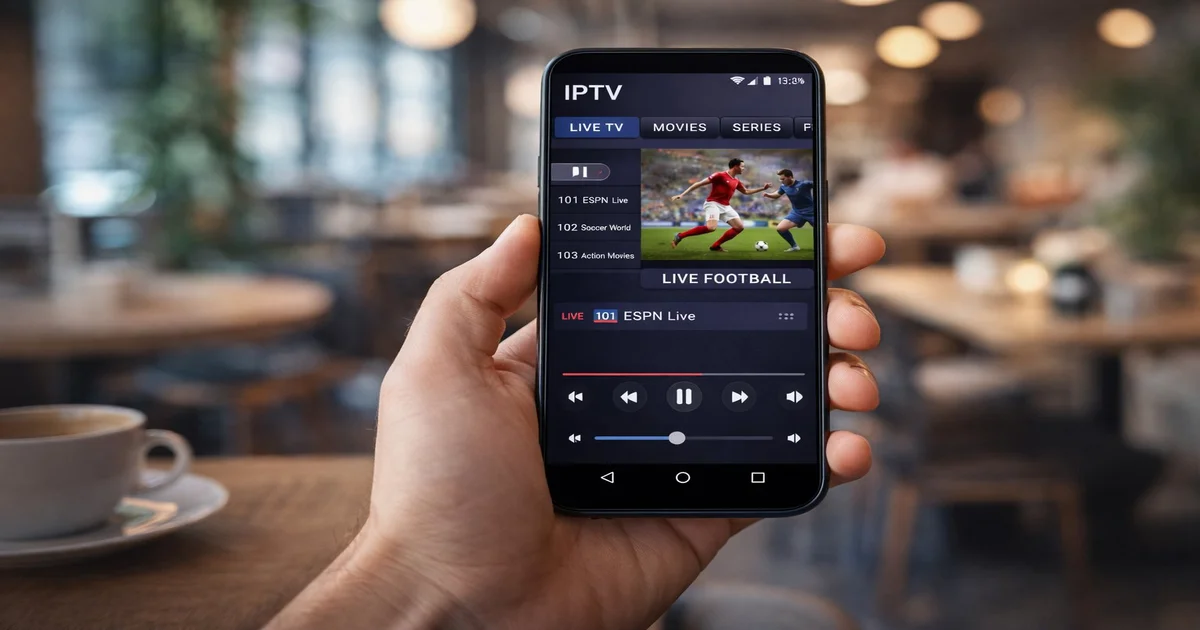
In 2026, watching IPTV on your mobile device has become the most convenient and flexible way to enjoy live television, movies, and series from anywhere in the world. Whether you are commuting to work, relaxing in a park, or traveling abroad, your Android phone or iPhone can serve as a full-fledged entertainment hub. The era of being tied to a living room television set is long gone. With the right IPTV application installed on your smartphone or tablet, you gain instant access to thousands of live channels, on-demand movies, and entire series libraries right in the palm of your hand. This comprehensive guide covers the best IPTV apps for both Android and iOS in 2026, complete with detailed setup instructions, comparison tables, optimization tips, and troubleshooting solutions to ensure you get the smoothest possible streaming experience on your mobile device.
Mobile IPTV viewing has exploded in popularity for several compelling reasons. First and foremost, convenience is king. Your smartphone is always with you, making it the perfect device for catching live sports, news broadcasts, or your favorite series whenever you have a free moment. Unlike traditional cable TV that chains you to a specific room, mobile IPTV grants you total freedom of location.
Multi-device compatibility is another major advantage. Most modern IPTV subscriptions, including IPTV SmartHD plans, allow you to use the same account across multiple devices. You can start watching a movie on your smart TV at home and seamlessly continue on your phone while commuting. This kind of cross-device flexibility was unimaginable just a few years ago.
The quality of mobile streaming has also improved dramatically. With 5G networks rolling out across major cities worldwide, buffering and quality drops are becoming things of the past. Modern smartphones feature high-resolution OLED displays that render Full HD and even 4K content beautifully. Combined with powerful processors and advanced video codecs like H.265/HEVC, your mobile device can deliver a viewing experience that rivals dedicated set-top boxes.
Finally, the ecosystem of IPTV apps available for both Android and iOS has matured significantly. In 2026, users can choose from a wide range of feature-rich applications that support EPG (Electronic Program Guide), catch-up TV, multi-language audio tracks, subtitle support, parental controls, and much more. Whether you prefer a simple, lightweight player or a full-featured media center, there is an app perfectly suited to your needs.
Android remains the most popular mobile platform for IPTV thanks to its open ecosystem, sideloading capabilities, and broad hardware support. Here are the top three IPTV apps for Android devices in 2026:
IPTV Smarters Pro continues to be the gold standard for mobile IPTV on Android. Available directly from the Google Play Store, it offers a polished, intuitive interface that makes navigating thousands of channels effortless. The app supports both Xtream Codes API and M3U playlist formats, giving you flexible options for connecting to your IPTV provider. Key features include a built-in EPG with multi-day program guides, favorite channel lists, parental controls with PIN protection, multi-screen viewing, and support for external video players. The ExoPlayer integration ensures smooth playback even on older Android devices, and the app handles HD, Full HD, and 4K streams with excellent stability.
TiviMate has earned a reputation as the premium IPTV player for Android, and in 2026 it remains unmatched for EPG management. The app provides a television-like experience on your phone with a beautiful, customizable interface. TiviMate excels at organizing channels into categories, supports catch-up and timeshift functionality, and offers recording capabilities in the premium version. The EPG displays program information in a clean grid layout, making it easy to plan your viewing schedule. While primarily designed for Android TV, the mobile companion app brings many of these features to your smartphone and tablet.
XCIPTV is a relatively newer entrant that has quickly gained popularity thanks to its modern design and reliable performance. The app supports Xtream Codes, M3U playlists, and direct stream URLs. It features an attractive material design interface, built-in EPG support, multiple playlist management, and a favorites system. XCIPTV also offers picture-in-picture mode on supported Android devices, allowing you to watch IPTV while using other apps. The app is lightweight and consumes minimal battery, making it ideal for extended mobile viewing sessions.
While iOS is more restrictive than Android when it comes to sideloading apps, the App Store still offers excellent IPTV applications. Here are the top three picks for iPhone and iPad users in 2026:
IPTV Smarters Pro is also available on the App Store for iOS devices, providing a consistent experience across platforms. The iOS version supports Xtream Codes API login, M3U URL playlists, EPG integration, and AirPlay for casting to Apple TV. The app features a clean, iOS-native interface with smooth animations and gesture controls. You can organize your channels into favorites, set up parental controls, and switch between multiple IPTV subscriptions with ease.
GSE Smart IPTV is one of the most versatile IPTV players available for iOS. It supports M3U, JSON, and Xtream Codes API formats. The app features a powerful built-in player with hardware acceleration, subtitle support in multiple formats (SRT, SUB, ASS), and the ability to add multiple playlists. GSE Smart IPTV also includes a built-in web browser for discovering content, Chromecast support, and a sleep timer. It works seamlessly on both iPhone and iPad with an adaptive interface that takes advantage of larger screens.
Flex IPTV is a native iOS application designed specifically for Apple devices. It offers a sleek, modern interface that feels right at home on iPhone and iPad. The app supports M3U playlists, Xtream Codes, and EPG in XMLTV format. Flex IPTV features AirPlay support, background audio playback, and a clean channel grid. The app is optimized for the latest iOS versions and takes advantage of Apple's hardware acceleration for smooth video playback.
| App | Android | iOS | Xtream Codes | M3U | EPG | Casting |
|---|---|---|---|---|---|---|
| IPTV Smarters Pro | Yes | Yes | Yes | Yes | Yes | Chromecast / AirPlay |
| GSE Smart IPTV | Yes | Yes | Yes | Yes | Yes | Chromecast |
| XCIPTV Player | Yes | No | Yes | Yes | Yes | Chromecast |
| TiviMate Companion | Yes | No | Yes | Yes | Yes | Chromecast |
| VLC Media Player | Yes | Yes | No | Yes | No | Chromecast / AirPlay |
| Flex IPTV | No | Yes | Yes | Yes | Yes | AirPlay |
Setting up IPTV on your Android device is straightforward and takes only a few minutes. Follow these detailed steps to get started with IPTV Smarters Pro, which we recommend as the best all-around option:
Setting up IPTV on your iPhone or iPad requires an App Store download and a few configuration steps. Here is a complete walkthrough using IPTV Smarters Pro on iOS:
Getting the best IPTV experience on your mobile device requires attention to a few key factors. Here are essential tips to optimize your mobile IPTV streaming in 2026:
Whenever possible, use a stable WiFi connection for IPTV streaming. WiFi provides more consistent bandwidth and lower latency compared to mobile data. If you must use mobile data, 5G connections offer the best experience for HD and Full HD content. Be aware that 4G/LTE connections may struggle with 4K content, especially in congested areas. Always check your mobile data plan limits before streaming extensively over cellular, as IPTV can consume significant amounts of data.
Understanding how much data IPTV consumes is crucial for mobile viewers. At SD quality (480p), expect approximately 700 MB per hour. HD content at 720p uses about 1.5 GB per hour. Full HD 1080p streams consume roughly 3 GB per hour, and 4K UHD content can use up to 7 GB per hour. Most IPTV apps allow you to set a preferred streaming quality. If you are on a limited data plan, set the quality to SD or HD to conserve data while still enjoying a good viewing experience.
One of the great advantages of mobile IPTV is the ability to cast your stream to a larger screen. Android users can use Chromecast or screen mirroring to send their IPTV stream to a smart TV. iPhone users can use AirPlay to cast to an Apple TV or compatible television. Many IPTV apps have built-in casting support, making the process seamless. Simply tap the cast icon within the app, select your TV, and enjoy your content on the big screen while using your phone as a remote control.
Even with the best setup, you may occasionally encounter issues with mobile IPTV streaming. Here are the most common problems and their solutions:
Buffering is the most common complaint among IPTV users. To resolve it, first check your internet connection speed. You need at least 10 Mbps for stable HD streaming and 25 Mbps for 4K. If your connection is adequate, try switching to a lower video quality setting. Increase the buffer size in your app settings. Clear the app cache and restart it. If the problem persists, try switching to a different video player within the app (e.g., from the default player to ExoPlayer or VLC). A VPN can also help if your ISP is throttling streaming traffic.
If your IPTV app crashes frequently, start by ensuring it is updated to the latest version from the Play Store or App Store. Clear the app cache and data from your phone settings. Make sure your device has sufficient free storage space (at least 500 MB). Close other background apps to free up RAM. If the issue continues, uninstall and reinstall the app. On Android, you can also try clearing the Google Play Services cache, as this can sometimes cause conflicts with video playback apps.
Audio problems can occur when the app defaults to an incompatible audio track. First, check that your phone volume is turned up and not in silent or vibrate mode. Within the app, look for audio track options and try switching to a different track (many channels offer multiple audio languages). If you still have no sound, switch the video player setting within the app. On Android, ensure that the audio output is set correctly, especially if you are using Bluetooth headphones or a connected speaker. Restarting the app and your device often resolves persistent audio issues.
IPTV Smarters Pro offers a free version with full functionality on Android. For a completely free and open-source option, VLC Media Player supports M3U playlist playback, though it lacks EPG and channel organization features. XCIPTV Player also offers a generous free tier with most features unlocked.
Absolutely. Several excellent IPTV apps are available directly from the Apple App Store, including IPTV Smarters Pro, GSE Smart IPTV, and Flex IPTV. No jailbreaking is required. Simply download the app, enter your IPTV subscription credentials, and start watching immediately.
Data consumption depends on the streaming quality. SD content (480p) uses approximately 700 MB per hour, HD (720p) uses about 1.5 GB per hour, Full HD (1080p) consumes around 3 GB per hour, and 4K UHD streams can use up to 7 GB per hour. Most apps allow you to adjust quality settings to manage data usage.
Yes, most IPTV apps support casting. Android users can use Chromecast or screen mirroring, while iPhone users can use AirPlay to cast to Apple TV or compatible smart TVs. Many apps like IPTV Smarters Pro and GSE Smart IPTV have built-in casting buttons for seamless streaming to your television.
Mobile data connections can be inconsistent, especially in crowded areas or during peak hours. To fix buffering on mobile data, reduce the streaming quality to SD or HD, increase the buffer size in your app settings, and ensure no other apps are consuming bandwidth in the background. A 5G connection will generally provide a much better experience than 4G/LTE for IPTV streaming.
Watching IPTV on your Android phone or iPhone has never been easier or more enjoyable than in 2026. With powerful apps like IPTV Smarters Pro, TiviMate, GSE Smart IPTV, and XCIPTV, you have access to a world of entertainment right in your pocket. Whether you are an Android enthusiast who appreciates the platform's flexibility or an iPhone user who values the seamless iOS experience, there is a perfect IPTV app waiting for you.
The key to a great mobile IPTV experience is choosing the right app for your device, configuring it properly with optimal player and buffer settings, and ensuring you have a stable internet connection. With the tips and troubleshooting advice provided in this guide, you are well equipped to enjoy buffer-free streaming on the go.
Ready to start watching? Explore our IPTV subscription plans to find the perfect package for your needs. Browse our full channel list featuring over 30,000 live channels from around the world. Or request a free 24-hour trial to test the service on your mobile device before committing. Your pocket-sized entertainment center awaits.
Download, subscribe, and watch in under 5 minutes. Try free for 24 hours.
Get Your Free Trial