
🇬🇧 English
🇫🇷 Français
🇩🇪 Deutsch
🇪🇸 Español
🇮🇹 Italiano
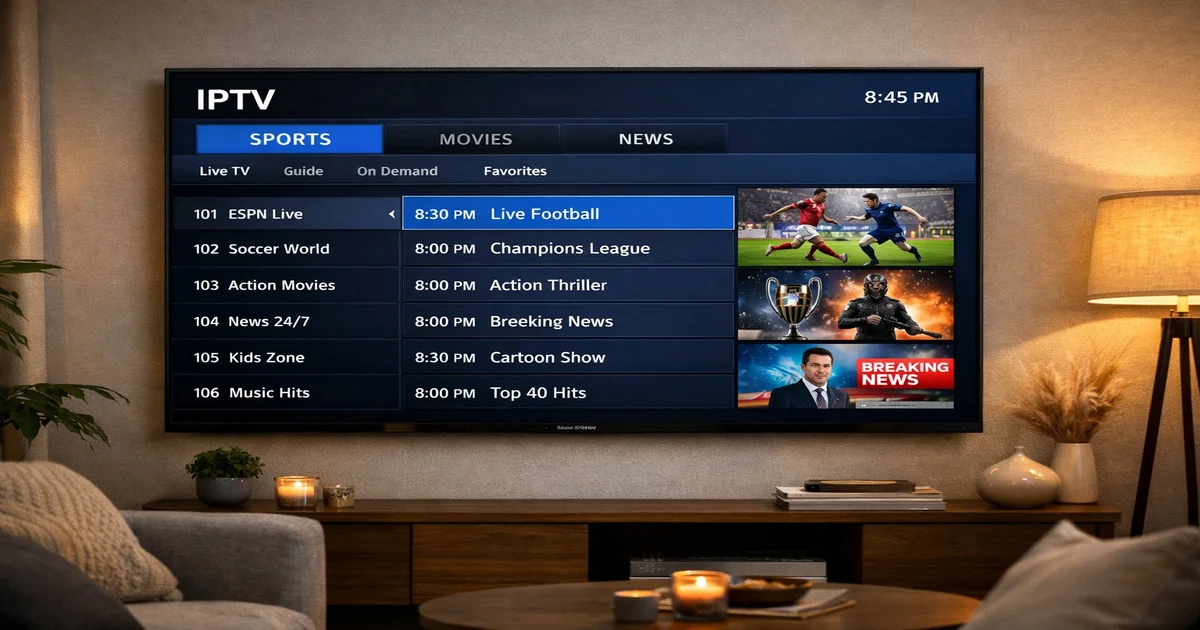
Setting up IPTV on your Samsung Smart TV has never been easier. Whether you own a 2020, 2022, 2024, or 2025 model running Tizen OS, this comprehensive guide walks you through every step — from choosing the right IPTV app to configuring advanced settings for crystal-clear 4K streaming. By the end of this article, you will be watching thousands of live channels on your Samsung TV with confidence.
Before installing IPTV on your Samsung Smart TV, you need to prepare a few essentials. First, confirm that your television runs Tizen OS — this applies to all Samsung Smart TVs manufactured from 2015 onwards. Older models running the legacy Orsay platform have limited app support and may not run modern IPTV players reliably.
You will also need a stable internet connection. For standard definition channels, 10 Mbps is sufficient. For HD content, aim for at least 15 Mbps. If you plan to watch 4K Ultra HD streams — which IPTV SmartHD supports on all plans — you should have a minimum of 25 Mbps. A wired Ethernet connection always outperforms WiFi for IPTV streaming, as it eliminates interference and latency spikes that cause buffering.
Finally, you need a valid IPTV subscription. IPTV SmartHD provides your credentials via email immediately after purchase. You will receive either an M3U playlist URL or Xtream Codes login details (server URL, username, and password). Both formats work perfectly on Samsung Smart TVs.
Samsung's Tizen OS is a Linux-based operating system that powers all modern Samsung Smart TVs. Unlike Android TV, Tizen does not natively support APK sideloading, which means you cannot install apps from outside the Samsung App Store without developer mode. However, the Samsung App Store offers several excellent IPTV players that handle M3U playlists and Xtream Codes perfectly.
Tizen OS has gone through multiple major versions. Models from 2020-2022 run Tizen 6.0 or 6.5, while 2023-2025 models use Tizen 7.0 and 8.0. The newer versions offer better memory management, faster app switching, and improved hardware video decoding — all of which benefit IPTV streaming. If your TV supports it, Tizen 7.0+ handles HEVC/H.265 codec natively, reducing bandwidth usage by up to 40% compared to older H.264 streams.
The two most reliable IPTV apps for Tizen are IPTV Smarters Pro and SS IPTV. Both are free to download from the Samsung Smart Hub and support all the features you need for a complete live TV experience, including EPG (Electronic Program Guide), catch-up TV, and multi-language audio tracks.
IPTV Smarters Pro is the most popular IPTV player worldwide and the recommended choice for Samsung Smart TVs. It features a modern, intuitive interface that mimics a traditional cable TV experience with channel categories, favorites lists, and a built-in EPG. The app supports M3U URLs, Xtream Codes API, and even allows multiple user profiles on a single device.
When you first open IPTV Smarters Pro, you will see a login screen. Select "Add New User" and choose your preferred login method. For Xtream Codes, enter the server URL, username, and password provided by IPTV SmartHD. For M3U URL, simply paste the full playlist link. The app will download your channel list, which typically takes 10-30 seconds depending on the size of your subscription package.
After loading, you will see your channels organized by category: Live TV, Movies, Series, and Catch-Up. Navigate using your Samsung remote. Press the channel up/down buttons to surf between channels, or use the category menu to jump directly to sports, news, entertainment, or kids channels.
SS IPTV (Simple Smart IPTV) is a lightweight alternative that has been available on Samsung TVs since 2012. It consumes fewer system resources than IPTV Smarters, making it ideal for older Samsung models with limited RAM. The app supports M3U playlists loaded via URL or uploaded through their web portal at ss-iptv.com.
| Feature | IPTV Smarters Pro | SS IPTV |
|---|---|---|
| Xtream Codes support | Yes | No (M3U only) |
| EPG (TV Guide) | Full support | Basic support |
| Multi-profile | Yes | No |
| 4K playback | Excellent | Good |
| RAM usage | Higher | Lower |
| Best for | 2020+ models | Older models |
After subscribing to IPTV SmartHD, you receive your credentials instantly via email. You can enter them using two different methods, depending on your chosen IPTV app and personal preference.
The M3U URL method is the simplest approach. Your M3U link contains your entire channel playlist in a single URL. In IPTV Smarters, select "Add User via M3U URL," paste the link, and channels load within seconds. This method works with both IPTV Smarters and SS IPTV. The disadvantage is that M3U playlists can be slower to load initially if your subscription includes thousands of channels.
Xtream Codes is the professional standard for IPTV delivery. Instead of a single URL, you enter three separate fields: the server address, your username, and your password. This method enables full EPG support, channel categorization by country and genre, and faster channel switching. IPTV SmartHD recommends Xtream Codes for the best Samsung TV experience.
Once your IPTV app is configured and channels are loading, you can fine-tune your Samsung TV settings for the best possible viewing experience. These optimizations make a significant difference, especially when watching sports or fast-moving content.
In your Samsung TV picture settings, set the Picture Mode to "Movie" or "Filmmaker Mode" for the most accurate colors. Disable any motion smoothing features (Samsung calls this "Auto Motion Plus") as they add input lag and can create artifacts in live IPTV streams. Set the contrast to 90-95% and brightness to 45-50% for optimal results in a normally-lit room.
For live TV, set the Sound Mode to "Standard" or "Amplify" if you are using the TV's built-in speakers. If you have a soundbar connected via HDMI ARC or eARC, set the audio output to "HDMI ARC" and enable Dolby Digital passthrough in the sound settings. Many IPTV SmartHD channels broadcast in Dolby Digital 5.1, which sounds incredible through a proper surround sound system.
For the smoothest IPTV experience, connect your Samsung TV via Ethernet cable rather than WiFi. If Ethernet is not possible, ensure your TV is connected to the 5GHz WiFi band (not 2.4GHz) and is positioned within a reasonable range of your router. In IPTV Smarters, increase the buffer size to "Large" or "Very Large" in the player settings. This preloads more data before playback begins, virtually eliminating buffering on stable connections.
Even with proper setup, you may encounter occasional issues. Here are the most common problems and their solutions when using IPTV on a Samsung Smart TV.
Buffering is almost always caused by insufficient bandwidth or network instability. Run a speed test on your Samsung TV (Settings > General > Network > Network Status > Speed Test) to verify your connection speed. If speeds are below 15 Mbps, contact your internet provider. Also try restarting your router, as DNS cache buildup can slow streaming performance over time.
If IPTV Smarters or SS IPTV crashes on launch, clear the app cache. Go to Settings > Apps > select your IPTV app > Clear Cache. If the problem persists, uninstall and reinstall the app. On older Samsung TVs with limited memory, closing other background apps before launching your IPTV player can help prevent crashes.
If your channel list is empty after entering your credentials, double-check your subscription details. Verify the server URL, username, and password are entered exactly as received in your confirmation email. Ensure there are no extra spaces before or after the credentials. If everything looks correct, contact IPTV SmartHD support via WhatsApp for immediate assistance.
Some channels broadcast in AAC audio while others use AC3/Dolby Digital. If you hear no sound on specific channels, change the audio track within your IPTV player — most channels offer multiple audio options. In IPTV Smarters, press the audio icon during playback to switch between available audio tracks and languages.
Not all Samsung TVs handle IPTV equally. Here is a compatibility overview based on model year and Tizen version to help you understand what to expect from your specific television.
| Samsung Model Year | Tizen Version | IPTV Performance | 4K IPTV Support |
|---|---|---|---|
| 2015-2017 | Tizen 2.3-3.0 | Basic (use SS IPTV) | Limited |
| 2018-2019 | Tizen 4.0-5.0 | Good | Yes (H.264) |
| 2020-2022 | Tizen 6.0-6.5 | Excellent | Yes (H.264 + HEVC) |
| 2023-2025 | Tizen 7.0-8.0 | Outstanding | Yes (HEVC + AV1) |
Yes, IPTV technology itself is completely legal. It is simply a method of delivering television content over the internet. IPTV SmartHD provides a legitimate streaming service with properly licensed channels and content.
Samsung TVs from before 2015 run the Orsay operating system, which has very limited app support. For these models, we recommend using an external device like an Amazon Fire TV Stick or Android TV box, which connects via HDMI and provides full IPTV functionality.
It depends on your plan. The Standard plan supports 1 device, Premium supports 2 devices, and VIP Gold supports up to 3 simultaneous connections. Check the pricing page for full details.
A VPN is not required to use IPTV SmartHD. Our service works globally without geographic restrictions. However, if you prefer additional privacy, you can configure a VPN at the router level since Samsung Tizen does not natively support VPN apps.
For reliable 4K streaming, you need at least 25 Mbps download speed. For HD content, 15 Mbps is sufficient. We always recommend a wired Ethernet connection for the most stable experience, especially during peak viewing hours.
Installing IPTV on your Samsung Smart TV is a straightforward process that takes less than 10 minutes. Whether you choose IPTV Smarters Pro for its full-featured interface or SS IPTV for its lightweight simplicity, you will have access to thousands of live channels, movies, and series in stunning 4K quality. IPTV SmartHD offers over 30,000 channels with 99.9% uptime, 24/7 customer support, and a free 24-hour trial so you can experience the quality before committing to a subscription.
Ready to transform your Samsung TV into the ultimate entertainment hub? Start your free trial today and discover why thousands of viewers trust IPTV SmartHD for their daily television needs.
Instant access to 30,000+ channels in 4K. Free 24h trial — no credit card required.
Start Your Free Trial Now