🇬🇧 English
🇫🇷 Français
🇩🇪 Deutsch
🇪🇸 Español
🇮🇹 Italiano
🇳🇱 Nederlands
🇸🇪 Svenska
🇵🇹 Português
🇵🇱 Polski
🇩🇰 Dansk
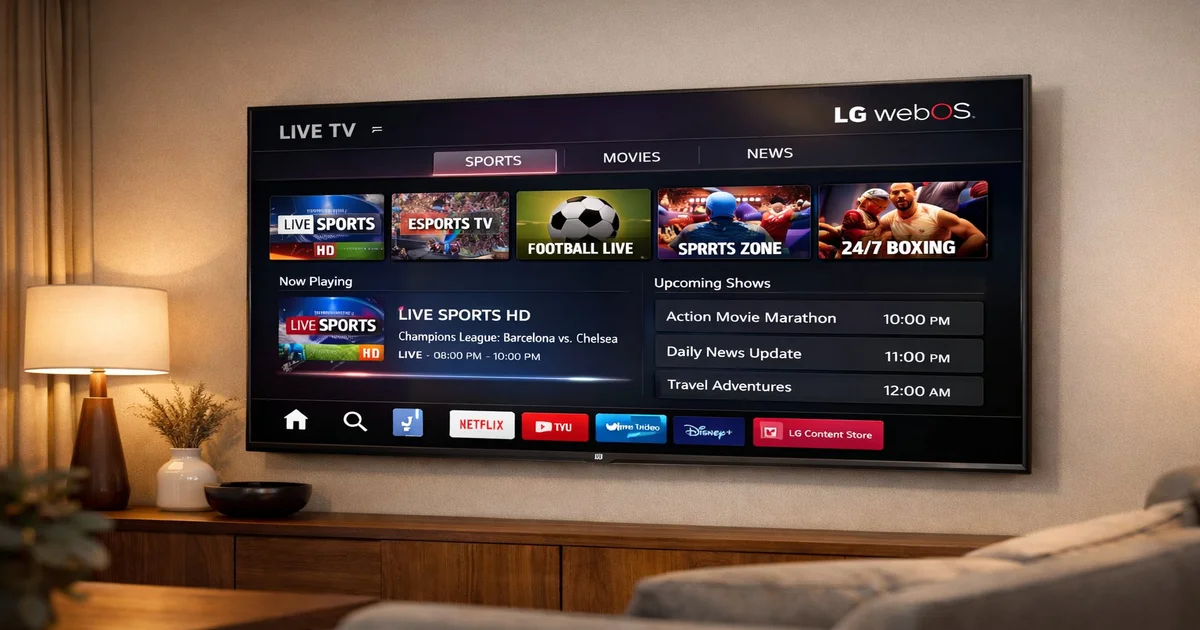
LG Smart TVs running webOS have become one of the most popular platforms for IPTV streaming in 2026. The operating system offers a fluid, intuitive interface that makes launching IPTV apps just as easy as opening Netflix or YouTube. Unlike some competing platforms, webOS supports a wide range of third-party applications, giving IPTV users multiple installation options and considerable flexibility in how they consume content.
Modern LG TVs from the C and G series support 4K HDR playback natively, which means you can enjoy IPTV channels at their highest available quality without any external hardware. The built-in hardware decoder handles H.265 (HEVC) and VP9 codecs efficiently, reducing buffering and ensuring smooth playback even on bandwidth-constrained connections. This native codec support is a significant advantage over older smart TV platforms that require external set-top boxes for 4K IPTV.
Another key benefit is LG's Magic Remote, which provides point-and-click navigation that makes browsing channel lists and electronic program guides far more comfortable than using a traditional directional remote. The voice search functionality can also be used to quickly find specific channels or programs within supported IPTV applications, saving considerable time when navigating large channel lineups of 10,000 or more channels.
LG regularly updates webOS with security patches and new features, which means your IPTV setup will remain compatible and functional over the lifetime of your television. The 2024, 2025, and 2026 models all support webOS 24 and later, which introduced improved memory management and faster app launch times — both critical for a smooth IPTV experience.
Before installing any IPTV application on your LG Smart TV, you need to ensure several things are in order. First and foremost, your television must be connected to the internet — either via Wi-Fi or, preferably, an Ethernet cable for maximum stability. IPTV streaming, especially in HD and 4K, requires a consistent and reliable connection. A minimum download speed of 15 Mbps is recommended for HD content, while 4K streams require at least 25–50 Mbps.
You will also need an active IPTV subscription from a reputable provider. Your provider should supply you with either an M3U playlist URL, Xtream Codes API credentials (host, username, password), or a MAC-based portal URL depending on which app you plan to use. Make sure you have these credentials ready before beginning the installation process, as you will need them during the app configuration step.
Verify that your LG TV is running webOS 3.0 or later. You can check this by navigating to Settings → General → About This TV. Models from 2016 onward generally run webOS 3.0+, but older models may have limited app store access. If your TV runs an older version of webOS, you may need to use the sideloading method or an external device like an Amazon Fire Stick instead.
To download apps from the LG Content Store, you need a free LG account. Go to Settings → General → Account Management → Create Account. Fill in your email address and set a password. Once verified, sign in on your TV. This one-time setup is required to access the app store and download IPTV applications.
IPTV Smarters is one of the most popular and user-friendly IPTV players available for LG Smart TVs. It supports Xtream Codes API, M3U playlists, and offers a clean interface with EPG (Electronic Program Guide) integration. The app is available directly through the LG Content Store on most webOS versions.
To install IPTV Smarters, press the Home button on your LG remote to open the webOS launcher bar. Navigate to the LG Content Store (the shopping bag icon) and search for "IPTV Smarters." Select the app from the search results and click Install. The download is typically around 15–25 MB and installs within seconds.
Once installed, open IPTV Smarters and select your login method. The recommended approach is "Xtream Codes API," which requires your server URL, username, and password provided by your IPTV service. Enter these credentials, give your playlist a name (e.g., "My IPTV"), and tap Add User. The app will load your channel list, VOD library, and EPG data automatically.
If your provider only supplies an M3U URL, select "Load Your Playlist or File" instead. Paste the full M3U URL, name the playlist, and submit. Note that M3U connections typically lack EPG support and advanced features like catch-up TV, so Xtream Codes is preferred when available.
If your EPG does not load automatically, go to Settings within IPTV Smarters and look for the EPG section. Enter your EPG URL (provided by your IPTV service) and set the refresh interval to every 12 hours. This ensures your program guide stays current without consuming excessive bandwidth. A working EPG dramatically improves the IPTV experience by showing current and upcoming programs for every channel.
Smart IPTV (commonly called SIPTV) is another highly regarded application that works exceptionally well on LG Smart TVs. Unlike IPTV Smarters, Smart IPTV uses a web-based activation system where you upload your M3U playlist through a browser on your computer or phone, then the TV loads it automatically. This approach is particularly convenient because you never need to type long URLs using the TV remote.
To set up Smart IPTV, first install the app from the LG Content Store by searching for "Smart IPTV." Once installed, open the app and note the MAC address displayed on the screen — you will need this for activation. On your computer or phone, navigate to the Smart IPTV website and enter your TV's MAC address along with your M3U playlist URL. Click Send and within seconds your playlist will be available on the TV.
Smart IPTV supports playlist grouping, so your channels will be organized by category (Sports, Movies, News, etc.) exactly as your provider has structured them. The app also supports EPG in XMLTV format, multi-language audio tracks, and subtitle selection where available. It handles large playlists of 20,000+ channels without performance issues, making it suitable for comprehensive IPTV subscriptions.
SET IPTV is a newer entrant to the LG IPTV app scene that has gained popularity due to its modern interface and robust feature set. Like Smart IPTV, it uses a web-based portal for playlist management but adds features like built-in VPN support indicators, parental controls, and a more visually appealing channel grid layout.
Install SET IPTV from the LG Content Store and open it to see your device's MAC address. Visit the SET IPTV portal from any browser, enter your MAC address, and upload your M3U URL or Xtream Codes credentials. The playlist synchronizes to your TV within seconds. SET IPTV excels with its auto-EPG feature that attempts to match channels with program guide data even when your provider does not include EPG in the subscription.
One standout feature of SET IPTV is its multi-playlist support. You can add multiple IPTV subscriptions and switch between them seamlessly, which is useful if you subscribe to different providers for different content categories. The app also supports catch-up TV (if your provider offers it), recording to USB storage, and picture-in-picture mode on supported LG TV models.
Regardless of which app you choose, you will need to connect it to your IPTV subscription using one of three methods: Xtream Codes API, M3U playlist URL, or MAC portal. Each method has distinct advantages, and your IPTV provider will specify which ones they support.
Xtream Codes API is the preferred connection method because it provides the richest feature set. You receive a server URL (e.g., http://provider.com:8080), a username, and a password. Enter these into your IPTV app's login screen. This method supports EPG, catch-up TV, VOD libraries with categories, series tracking with episode progress, and account management features like changing passwords. It also uses less bandwidth than M3U because it only loads channel data on demand rather than downloading the entire playlist at startup.
An M3U URL is a direct link to your channel list file. It is simple and universally supported by all IPTV apps. However, M3U playlists must be downloaded entirely at startup, which can be slow for large lists. EPG support depends on whether your provider embeds EPG URLs in the M3U file. Despite these limitations, M3U remains a reliable fallback option that works across virtually every IPTV player on every platform.
MAC-based portals are used primarily by Stalker/Ministra middleware systems. Your provider gives you a portal URL and your TV's MAC address is registered on their server. This method is common with MAG-style setups but is also supported by apps like STB Emu. It provides a familiar cable-TV-like interface with program guides built into the portal.
Even with a perfect setup, you may occasionally encounter issues. The most common problems and their solutions are outlined below to help you resolve them quickly and get back to watching.
If you cannot find your desired IPTV app in the LG Content Store, first ensure your TV's region is set correctly. Some apps are only available in certain regions. You can change your LG account's country in the account settings — try setting it to the United Kingdom or Germany, as these regions typically have the widest app selection. After changing the region, restart your TV and check the store again.
Buffering is almost always related to network conditions rather than the app itself. Switch from Wi-Fi to Ethernet if possible. If you must use Wi-Fi, ensure your TV is on the 5 GHz band and that there are no physical obstructions between the TV and router. Run a network speed test on your TV (Settings → Network → Connection Test) and verify you have at least 15 Mbps download speed. If speeds are adequate but buffering persists, try changing your DNS to Google (8.8.8.8) or Cloudflare (1.1.1.1).
A black screen usually indicates a codec incompatibility. Some IPTV streams use codecs that your LG TV cannot decode natively. Try switching to a different channel to confirm it is not a server-side issue. If the problem is widespread, check if your IPTV app has a "software decoder" or "external player" option in its settings. Enabling software decoding uses more CPU but supports a wider range of codecs.
Choosing the right IPTV app depends on your priorities. Below is a detailed comparison of the three main options available for LG Smart TVs in 2026.
| Feature | IPTV Smarters | Smart IPTV | SET IPTV |
|---|---|---|---|
| Price | Free | €5.49 (one-time) | Free / Premium |
| Xtream Codes Support | Yes | No | Yes |
| M3U Support | Yes | Yes | Yes |
| EPG (Program Guide) | Built-in | Via XMLTV | Auto-detection |
| Catch-up TV | Yes | Limited | Yes |
| Multi-playlist | Yes | Yes | Yes |
| Interface Quality | Good | Basic | Excellent |
| Setup Difficulty | Easy | Medium | Medium |
| 4K Support | Yes | Yes | Yes |
| Best For | Beginners | Large playlists | Power users |
For most users, IPTV Smarters offers the best balance of features and ease of use, especially if your provider supports Xtream Codes API. Smart IPTV remains a strong choice for users who prefer web-based playlist management and have very large channel lists. SET IPTV is the best option for advanced users who want the most feature-rich experience with multi-playlist support and a modern interface.
IPTV apps are available on LG Smart TVs running webOS 3.0 and later, which includes models from 2016 onward. Older LG TVs running NetCast may have limited app store access and may not support modern IPTV applications. For these older models, an external device such as an Amazon Fire Stick or Android TV box is recommended as an alternative.
The IPTV technology and applications themselves are completely legal. The legality depends on the content and the provider you use. Subscribing to a licensed, reputable IPTV service that has proper broadcasting rights for its content is entirely legal. Always choose providers that are transparent about their licensing and content sourcing.
App crashes are typically caused by insufficient memory. Close all other running apps before launching your IPTV player. You can also try clearing the app's cache by going to Settings → General → Storage → and selecting the IPTV app. If crashes persist, uninstall and reinstall the app. On older LG TVs with limited RAM, reducing the playlist size by asking your provider for a lighter version can also help.
Native recording through the LG TV's built-in PVR function is not supported for IPTV streams. However, some IPTV apps like SET IPTV offer recording functionality to a USB drive connected to your TV. The recording quality depends on the stream and available USB storage space. Alternatively, some IPTV providers offer cloud-based DVR or catch-up TV features that let you watch programs after they have aired.
A VPN is not required to use IPTV but can be beneficial. It can help bypass ISP throttling of streaming traffic and add a layer of privacy. Since LG TVs do not natively support VPN apps, you would need to configure the VPN at the router level or use a Smart DNS service. Some providers like IPTV SmartHD include Smart DNS functionality as part of their subscription.
Instant access to 30,000+ channels in 4K. Free 24h trial — no credit card required.
Start Your Free Trial Now