Best IPTV for Nvidia Shield TV — Complete Setup Guide 2026
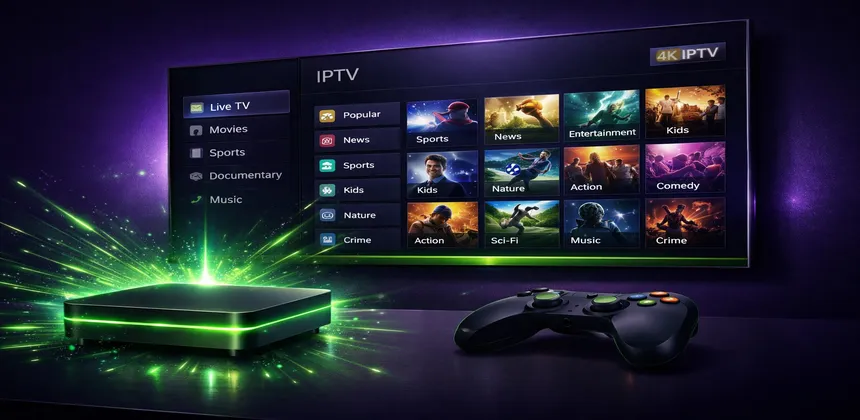
If you are serious about IPTV, the Nvidia Shield TV is widely considered the gold standard. Powered by the Tegra X1+ processor with 3GB of RAM, it handles even the most demanding 4K HDR streams without breaking a sweat. Add in Nvidia's AI-enhanced upscaling technology, native Dolby Vision and Dolby Atmos support, and the full flexibility of Android TV, and you have a device that transforms your television into a powerhouse streaming hub.
In this comprehensive guide, we will cover everything from why the Shield outperforms its competitors to step-by-step setup instructions, advanced features like recording and multi-view, and troubleshooting tips to keep your streams running flawlessly.
Table of Contents
Why Nvidia Shield Is the Best Device for IPTV
There are dozens of streaming devices on the market, so what makes the Nvidia Shield stand out for IPTV specifically? It comes down to raw performance, flexibility, and features that matter most for live TV streaming. Let us see how it stacks up against the most popular alternatives.
| Feature | Nvidia Shield Pro | Fire Stick 4K Max | Apple TV 4K | Formuler Z11 |
|---|---|---|---|---|
| Processor | Tegra X1+ | MediaTek MT8696 | A15 Bionic | Amlogic S905X4 |
| RAM | 3 GB | 2 GB | 4 GB | 2 GB |
| Storage | 16 GB + USB | 16 GB | 64/128 GB | 16 GB |
| AI Upscaling | ✔ (4K) | ✘ | ✘ | ✘ |
| USB Ports | 2x USB 3.0 | None | None | 1x USB 2.0 |
| Ethernet | Gigabit | Via adapter | Gigabit | 100 Mbps |
| Sideloading | ✔ | ✔ | ✘ | ✔ |
| Price (approx.) | $199 | $59 | $129 | $149 |
The Shield Pro's standout advantage is its AI upscaling engine. Nvidia uses machine learning to upscale 720p and 1080p content to near-4K quality in real time. For IPTV, where many channels still broadcast in HD rather than native 4K, this makes a visible difference in picture sharpness and clarity on large screens.
The two USB 3.0 ports are another significant advantage. You can connect external hard drives or USB sticks for recording live TV, something that is simply not possible on a Fire Stick or Apple TV. Combined with the built-in Gigabit Ethernet port (no adapter needed), the Shield Pro is purpose-built for reliable, high-quality streaming.
Running Android TV also means you have access to the Google Play Store plus the ability to sideload any Android APK. This gives you by far the widest selection of IPTV apps compared to any other platform.
Best IPTV Apps for Nvidia Shield
The Android TV ecosystem offers a wealth of IPTV applications. After extensive testing, here are the top picks for Nvidia Shield users:
| App | Price | M3U | Xtream | EPG | DVR/Recording | Rating |
|---|---|---|---|---|---|---|
| TiviMate | Free / $4.99/yr | ✔ | ✔ | ✔ | ✔ (Premium) | 4.8/5 |
| IPTV Smarters Pro | Free | ✔ | ✔ | ✔ | ✘ | 4.3/5 |
| Perfect Player | Free | ✔ | ✔ | ✔ | ✘ | 4.2/5 |
| Kodi + PVR IPTV | Free | ✔ | Via addon | ✔ | ✔ | 4.5/5 |
TiviMate (Recommended)
TiviMate is the undisputed champion for IPTV on Android TV devices. The interface is clean, responsive, and designed specifically for television screens. The EPG grid view is fast and intuitive — you can scroll through thousands of channels without any lag on the Shield's hardware. The premium version (just $4.99 per year) unlocks recording to external storage, catch-up TV, and the ability to add multiple playlists. For most Shield users, TiviMate is the only app you will ever need.
IPTV Smarters Pro
A solid all-around player that works well on the Shield. It supports both M3U and Xtream Codes login, and the interface is familiar to anyone who has used IPTV on other devices. While it lacks TiviMate's polish and recording features, it is completely free and gets the job done reliably. For a full walkthrough, see our IPTV Smarters Pro setup guide.
Perfect Player
Perfect Player has been around for years and has a loyal following. It is lightweight, fast, and highly customizable. The interface is more utilitarian than pretty, but advanced users appreciate the level of control it offers over playlist management, EPG sources, and player settings. It works exceptionally well on the Shield thanks to the powerful hardware.
Kodi with PVR IPTV Simple Client
Kodi is the Swiss Army knife of media players. With the PVR IPTV Simple Client addon, it transforms into a full-featured IPTV player with recording capabilities, timeshift, and deep customization through skins and addons. The learning curve is steeper than dedicated IPTV apps, but if you already use Kodi for your media library, adding IPTV to it creates a unified entertainment hub.
Step-by-Step Setup Guide
We will use TiviMate for this walkthrough since it is our recommended app, but the general process is similar for any IPTV player on the Shield.
Step 1: Install TiviMate
- From your Shield's home screen, open the Google Play Store.
- Use the search bar to find "TiviMate".
- Select TiviMate IPTV Player from the results (developer: AR Mobile Dev).
- Click Install and wait for the download to complete.
- Once installed, open the app from your home screen or the Apps row.
Step 2: Add Your IPTV Playlist
When you first launch TiviMate, it will prompt you to add a playlist. You have two options:
Option A: Xtream Codes (Recommended)
- Select Xtream Codes as the playlist type.
- Enter the Server URL provided by your IPTV service (e.g., http://server.example.com:8080).
- Enter your Username and Password.
- Tap Next. TiviMate will connect to the server and verify your credentials.
- Give the playlist a friendly name (e.g., "IPTV SmartHD") and tap Done.
Option B: M3U URL
- Select M3U Playlist as the type.
- Choose URL and paste your full M3U playlist link.
- Tap Next and wait for the playlist to load. Larger playlists with thousands of channels may take up to a minute.
- Name your playlist and tap Done.
Step 3: Configure the EPG
- After adding your playlist, go to Settings > EPG.
- If you used Xtream Codes, the EPG source is usually configured automatically. Check that it shows data by navigating to the program guide.
- If you used M3U, you may need to add your EPG URL manually. Go to Settings > EPG > EPG Source and enter the XMLTV URL provided by your IPTV service.
- Set the EPG update interval to every 12 hours for the most up-to-date program information.
- Press Update EPG to load the guide data immediately.
Step 4: Start Watching
Navigate to the channel list or EPG grid view. Select any channel to begin streaming. Use the directional pad on your Shield remote to browse channels, and press OK/Select to tune in. The Shield's powerful processor ensures instant channel switching with minimal buffering.
4K and HDR Configuration Tips
The Nvidia Shield is capable of stunning picture quality, but you need to configure it correctly to get the best results. Here is how to optimize your display settings for IPTV.
Display Resolution and Refresh Rate
Navigate to Settings > Device Preferences > Display & Sound > Resolution:
- Set the resolution to 4K (3840x2160) if your TV supports it.
- For refresh rate, choose 59.940 Hz for North American content or 50 Hz if you primarily watch European channels. Alternatively, leave it at 60 Hz as a good default.
- Enable Match content color space so the Shield automatically switches between SDR and HDR depending on the content.
Dolby Vision
If your TV supports Dolby Vision, the Shield will detect this automatically. Go to Settings > Device Preferences > Display & Sound and confirm that Dolby Vision is listed as available. When an IPTV channel or VOD title supports HDR or Dolby Vision, the Shield will switch to the appropriate mode. For a deeper dive into 4K streaming quality, check our IPTV 4K vs HD comparison guide.
AI Upscaling
This is one of the Shield's most impressive features. The AI upscaling engine uses Nvidia's neural network to enhance lower-resolution content in real time. To enable it:
- Go to Settings > Device Preferences > Display & Sound.
- Find AI-enhanced upscaling and turn it ON.
- Choose between Low, Medium, and High settings. We recommend starting with Medium for a good balance between enhancement and natural-looking output.
This is particularly valuable for IPTV, where many channels broadcast at 720p or 1080p. The upscaling makes a noticeable difference on large 4K screens, sharpening details and reducing compression artifacts.
HDMI-CEC
Enable CEC under Settings > Device Preferences > Display & Sound > HDMI-CEC so your TV and Shield can communicate. This means your TV will automatically switch to the Shield's input when you power it on, and you can use your TV remote's power button to put the Shield to sleep. It is a small convenience that makes the day-to-day experience smoother.
Advanced Features
The Nvidia Shield combined with TiviMate unlocks several advanced features that are simply not available on most other streaming devices.
Recording to USB or NAS
With TiviMate Premium, you can record live IPTV channels directly to external storage:
- Connect a USB drive or external HDD to one of the Shield's USB 3.0 ports. Format it as internal or external storage when prompted.
- In TiviMate, go to Settings > Recordings > Recording path and select your external drive.
- To record a channel, navigate to it in the EPG, long-press, and select Record. You can schedule recordings in advance based on the EPG data.
- For NAS recording, map your network share as a storage location. The Shield supports SMB network shares natively.
This effectively turns your Shield into a DVR. You can record multiple channels simultaneously (depending on your IPTV subscription's connection limit) and watch them later at your convenience.
Timeshift and Catch-Up
Timeshift allows you to pause and rewind live TV. In TiviMate:
- Enable timeshift in Settings > Playback > Timeshift.
- Set the buffer location to your USB drive for longer timeshift durations.
- While watching a live channel, press pause to activate timeshift. You can rewind up to the buffer limit and resume at any point.
Catch-up TV is a server-side feature that lets you watch programs that aired in the past (typically the last 24-72 hours). If your IPTV provider supports catch-up, channels with this feature will display a special icon in TiviMate. Simply select a past program from the EPG to start watching it.
Multi-View / Split Screen
One of TiviMate's most impressive features is multi-view, which lets you watch several channels simultaneously on a single screen:
- While watching a channel, press the Menu button and select Multi-view.
- Add additional channels to the grid. TiviMate supports up to 4 streams on screen at once (with Premium).
- Select any stream to hear its audio. The others will play silently.
This is perfect for sports fans who want to follow multiple matches simultaneously, or for keeping an eye on news channels while watching entertainment. The Shield's Tegra X1+ processor handles multiple simultaneous streams without performance issues.
External Storage for Large Libraries
If you use your Shield for both IPTV and local media playback, the USB 3.0 ports allow you to connect large external drives. You can set up a Plex Media Server directly on the Shield (it is one of the few Android TV devices that supports Plex server), giving you a complete home entertainment solution in one box.
Troubleshooting
The Nvidia Shield is one of the most reliable devices for IPTV, but here are solutions to the few issues you might encounter.
Buffering
Buffering on the Shield is almost always a network issue rather than a hardware limitation. For a complete buffering fix guide, see our IPTV buffering troubleshooting article. Quick fixes:
- Use Ethernet — The Shield has a built-in Gigabit Ethernet port. A wired connection is always more stable than Wi-Fi for continuous streaming. In our testing, Ethernet reduces buffering incidents by 90% compared to Wi-Fi.
- Change your DNS — Go to Settings > Network > your connection > Advanced > DNS, and set it to 1.1.1.1 (Cloudflare) or 8.8.8.8 (Google). Slow DNS resolution is a frequent cause of initial stream loading delays.
- Test your actual speed — Install the Speedtest app from the Play Store and run it on the Shield itself. You need at least 25 Mbps for reliable 4K streaming and 15 Mbps for 1080p.
Codec and Playback Issues
If specific channels show a black screen or have distorted video:
- Open TiviMate's Settings > Playback > Decoder and try switching between Hardware and Software decoding. Hardware decoding is faster and uses less power, but software decoding has broader codec compatibility.
- Some older or less common codecs may require the MX Player or VLC as an external player. In TiviMate, you can set an external player under Settings > Playback > Player.
- Make sure your IPTV app is updated to the latest version. Codec support improves with each update.
Wi-Fi vs Ethernet Performance
To illustrate the difference, here is what you can typically expect:
- Wi-Fi 5 (5 GHz): Average throughput of 200-400 Mbps, but with occasional latency spikes that cause micro-buffering. Fine for HD, unreliable for 4K.
- Wi-Fi 6: Better consistency at 300-600 Mbps with lower latency. Suitable for 4K in most cases.
- Gigabit Ethernet: Consistent 800-950 Mbps with virtually zero latency variation. The best choice for any resolution.
If running an Ethernet cable to your Shield is not practical, consider powerline adapters or a dedicated Wi-Fi 6 mesh node placed near your entertainment center.
Clearing App Cache
If an IPTV app becomes sluggish or behaves unexpectedly:
- Go to Settings > Apps.
- Find your IPTV app and select it.
- Choose Clear Cache. This removes temporary data without deleting your settings or playlists.
- If the problem persists, try Clear Data (note: this will reset the app and you will need to re-enter your credentials).
- Restart the Shield by going to Settings > Device Preferences > About > Restart.
Frequently Asked Questions
Should I get the Shield TV or Shield TV Pro for IPTV?
For IPTV specifically, the Shield TV Pro is the better choice. It has 3GB of RAM (vs 2GB), two USB 3.0 ports for recording, and the Plex Media Server capability. The standard Shield TV is a tube-shaped device without USB ports, which means no external storage for recordings. If recording is not important to you, the standard model handles streaming equally well.
Can I use a VPN on the Nvidia Shield for IPTV?
Yes. Most major VPN providers (NordVPN, ExpressVPN, Surfshark) have native Android TV apps available on the Google Play Store. You can also configure a VPN at the router level to protect all devices on your network. For IPTV, choose a nearby server to minimize the impact on streaming speed.
Is TiviMate available on the Google Play Store?
Yes, TiviMate IPTV Player is available directly on the Google Play Store for Android TV. Search for "TiviMate" and install the version by AR Mobile Dev. The free version supports one playlist. TiviMate Premium ($4.99/year) unlocks unlimited playlists, recording, catch-up, and multi-view.
How many simultaneous streams can I watch on the Shield?
The Shield hardware can decode multiple streams simultaneously — TiviMate supports up to 4 in multi-view mode. However, the number of simultaneous connections is also limited by your IPTV subscription plan. IPTV SmartHD plans include between 1 and 3 simultaneous connections depending on the tier.
Does the AI upscaling work with IPTV streams?
Yes, Nvidia's AI upscaling works system-wide on all video content, including IPTV streams. It is particularly effective on 720p and 1080p channels, making them look noticeably sharper on a 4K TV. The effect is subtle on content that is already 4K native, but it helps reduce compression artifacts even at higher resolutions.
Conclusion
The Nvidia Shield TV is, without question, the most capable device you can buy for IPTV in 2026. Its combination of powerful hardware, AI upscaling, extensive app support, and advanced features like recording and multi-view puts it in a league of its own. While it carries a higher price tag than a Fire Stick or budget Android box, the difference in experience is immediately apparent — faster channel switching, smoother playback, better picture quality, and rock-solid reliability.
Paired with TiviMate and a quality IPTV subscription, the Shield delivers a home entertainment experience that genuinely rivals (and often exceeds) traditional cable TV. The setup takes less than 15 minutes, and once configured, it just works. If you are looking for the best possible IPTV experience and do not mind investing in premium hardware, the Nvidia Shield TV Pro is the device to get.
Get the Best IPTV Experience on Your Nvidia Shield
Try IPTV SmartHD free — 30,000+ channels, 4K quality, instant activation.
Free TrialRelated Articles
- IPTV on Amazon Fire Stick — Complete Guide
- IPTV on Android & iOS Devices
- IPTV 4K vs HD: Which Should You Choose?
- How to Fix IPTV Buffering Issues