
How to Set Up IPTV on Apple TV 4K in 2026 — Complete Guide
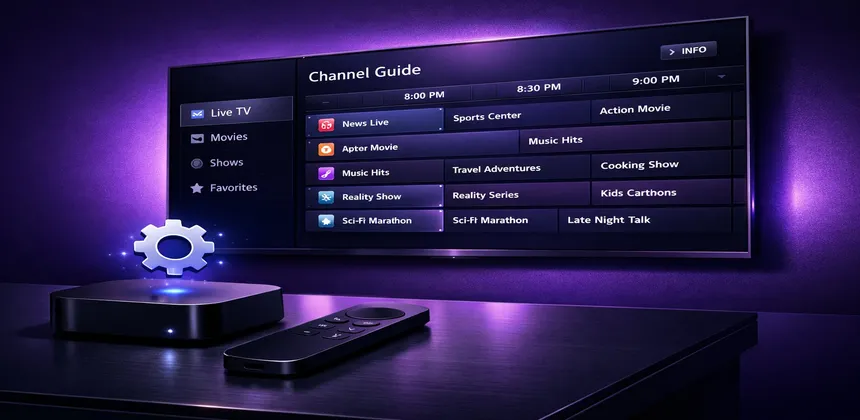
Apple TV 4K has earned its reputation as one of the most polished streaming devices on the market. With its powerful A15 Bionic chip, support for Dolby Vision and Dolby Atmos, and the beautifully smooth tvOS interface, it delivers a premium living room experience that few competitors can match. But did you know it is also an excellent platform for watching IPTV?
In this guide, we will walk you through everything you need to get IPTV running on your Apple TV 4K — from choosing the right app to configuring your EPG and optimizing picture quality. Whether you are brand new to IPTV or switching from another device, this article has you covered.
Table of Contents
What You Need Before Starting
Before diving into the setup process, make sure you have the following essentials ready. Having everything prepared in advance will save you time and ensure a smooth installation.
Hardware Requirements
- Apple TV 4K (2nd or 3rd generation) — The older HD model works too, but you will miss out on 4K resolution and HDR support. The 3rd generation model with the A15 chip offers the best performance for IPTV streaming.
- HDMI 2.1 cable — If your TV supports 4K HDR, use a high-speed HDMI cable to ensure you get the full picture quality.
- Stable internet connection — A minimum of 25 Mbps is recommended for reliable 4K IPTV streaming. For the best experience, connect your Apple TV via Ethernet rather than Wi-Fi.
Software Requirements
- An active IPTV subscription — You will need either an M3U playlist URL or Xtream Codes credentials (server URL, username, password). If you do not have one yet, check out our IPTV plans starting from just a few euros per month.
- An Apple ID — Required to download apps from the tvOS App Store.
- EPG URL (optional but recommended) — An Electronic Program Guide URL lets you see what is currently playing and what is coming up next on each channel.
Best IPTV Apps for Apple TV
Unlike Android-based devices, Apple TV does not support sideloading, which means you are limited to apps available on the official tvOS App Store. Fortunately, there are several solid IPTV players available. Here is how they compare:
| App | Price | M3U | Xtream | EPG | Multi-screen | Rating |
|---|---|---|---|---|---|---|
| IPTV Smarters | Free | ✔ | ✔ | ✔ | ✘ | 4.3/5 |
| GSE Smart IPTV | Free (ads) | ✔ | ✔ | ✔ | ✔ | 4.1/5 |
| iPlayTV | $6.99 | ✔ | ✔ | ✔ | ✔ | 4.6/5 |
IPTV Smarters
This is the most popular IPTV player across all platforms, and for good reason. The tvOS version supports both M3U playlists and Xtream Codes login, making it easy to connect your subscription. The interface is straightforward, and setting it up takes only a couple of minutes. For a detailed walkthrough of this app, see our IPTV Smarters Pro setup guide.
GSE Smart IPTV
GSE Smart IPTV is a versatile option that supports a wide range of playlist formats. It includes a built-in player with support for multiple audio tracks and subtitles. The free version contains ads, but they are not overly intrusive. One standout feature is the ability to display multiple streams simultaneously if you want to keep an eye on several channels at once.
iPlayTV
If you are willing to spend a few dollars, iPlayTV is arguably the best IPTV experience on Apple TV. It was designed specifically for tvOS, so the interface feels native and polished. The EPG grid view is particularly well done, making it easy to browse channels and see what is airing. It also supports picture-in-picture and split-screen viewing.
Step-by-Step Installation Guide
Let us walk through the complete setup process using IPTV Smarters as our example app. The steps are similar for other apps, so you can adapt this guide regardless of which player you choose.
Step 1: Download the App
- Turn on your Apple TV and navigate to the App Store from the home screen.
- Use the search function (magnifying glass icon) and type "IPTV Smarters".
- Select the app from the search results and click Get to download it.
- Wait for the installation to complete. The app icon will appear on your home screen.
Step 2: Launch and Log In
- Open IPTV Smarters from your home screen.
- You will be presented with two login options: Load M3U URL or Xtream Codes API.
- If you are using Xtream Codes (recommended), enter your server URL, username, and password. These credentials are provided by your IPTV service.
- If you prefer the M3U method, paste your full M3U playlist URL into the appropriate field.
- Give your playlist a name (e.g., "My IPTV") and tap Add User.
Step 3: Load Your Channels
- After logging in, the app will begin loading your channel list. This may take 30 seconds to a minute depending on how many channels are in your subscription.
- Once loaded, you will see categories like Live TV, Movies, and Series in the main menu.
- Navigate to Live TV to browse your channel list. Channels are typically organized by country and category (sports, entertainment, news, etc.).
Step 4: Test a Channel
Select any channel to start streaming. If the picture loads within a few seconds, your setup is working correctly. Try a couple of different channels, including an HD and a 4K channel if available, to make sure everything is running smoothly.
How to Configure EPG and Channel Lists on Apple TV
An Electronic Program Guide transforms your IPTV experience from a basic channel list into something that feels like a proper cable TV service. Here is how to set it up and get the most out of it.
Adding Your EPG URL
Most IPTV providers, including IPTV SmartHD, supply an EPG URL alongside your subscription credentials. To add it in IPTV Smarters:
- Go to Settings within the app.
- Find the EPG or Program Guide section.
- Enter your EPG URL in the provided field.
- Tap Save and wait for the guide data to download.
If you are using iPlayTV, the process is even simpler. When adding your playlist, there is a dedicated field for the EPG URL right on the same screen. The app automatically links channels to the correct program data.
Setting Refresh Intervals
EPG data is typically updated every 24 hours. Most apps let you set an automatic refresh interval. We recommend setting this to every 12 hours so your guide stays current. You can usually find this option under the EPG settings menu.
Organizing Favorites
With thousands of channels available, finding what you want to watch can feel overwhelming. Take a few minutes to set up a favorites list:
- Long-press on a channel to add it to favorites (or use the bookmark/star icon depending on your app).
- Create custom groups if your app supports it — for example, "Sports," "News," or "Kids."
- Most apps remember your recently watched channels, making it easy to jump back to what you were watching.
Optimizing Picture Quality on Apple TV 4K
One of the biggest advantages of using Apple TV for IPTV is its excellent video processing capabilities. A few adjustments to your settings can make a significant difference in picture quality.
Display and Video Settings
Navigate to Settings > Video and Audio on your Apple TV:
- Format: Set this to 4K SDR as your default format. This gives the best baseline for most content.
- Match Content > Match Dynamic Range: Turn this ON. This allows your Apple TV to automatically switch to HDR or Dolby Vision when the content supports it, rather than applying HDR processing to all content.
- Match Content > Match Frame Rate: Turn this ON. This ensures content plays at its native frame rate (24fps for movies, 50fps for European broadcasts, 60fps for sports), eliminating judder.
- Chroma: Set to 4:4:4 if your TV supports it, for the sharpest possible picture.
Dolby Vision and HDR
If your TV supports Dolby Vision, Apple TV will automatically detect this and offer it as an output option. Dolby Vision provides dynamic metadata that adjusts the picture scene by scene, resulting in more accurate colors and better contrast compared to standard HDR10. Not all IPTV channels broadcast in HDR, but when they do, your Apple TV will handle the format switching automatically if you have enabled "Match Dynamic Range."
Audio Settings
Under Settings > Video and Audio > Audio Format, select Auto to let your Apple TV pass through the best audio format your setup supports. If you have a Dolby Atmos-compatible soundbar or receiver, make sure Atmos is enabled. For IPTV channels that broadcast in surround sound, this makes a noticeable difference, especially for live sports and movie channels.
Troubleshooting Common Issues
Even with the best setup, you might encounter occasional issues. Here are the most common problems and their solutions.
App Crashes or Freezes
If your IPTV app crashes frequently:
- Force close and reopen — Double-click the TV button on your Siri Remote, swipe up on the app to close it, then reopen.
- Delete and reinstall — Long-press the app icon, select Remove App, then re-download from the App Store. This clears any corrupted cache files.
- Check for tvOS updates — Go to Settings > System > Software Updates and install any available updates. App crashes can sometimes be caused by OS incompatibilities.
Buffering and Playback Issues
Buffering is the most common complaint with IPTV on any device. For a comprehensive solution guide, see our dedicated article on how to fix IPTV buffering. Here are the quick fixes:
- Switch to Ethernet — Wi-Fi is convenient, but a wired connection is far more stable for continuous 4K streaming. Apple TV 4K has a built-in Gigabit Ethernet port.
- Change your DNS — Go to Settings > Network > Wi-Fi/Ethernet > Configure DNS > Manual, and enter 1.1.1.1 (Cloudflare) or 8.8.8.8 (Google). Slow DNS resolution is a surprisingly common cause of buffering.
- Lower the stream quality — If your internet speed is borderline, switch from a 4K channel to the HD version of the same channel. Most providers offer both.
- Restart your router — Sometimes the simplest solution is the most effective. Power cycle your router and Apple TV.
Audio Out of Sync
Audio sync issues usually stem from the app's player engine rather than the Apple TV itself:
- Try switching the audio track within the app (some channels offer multiple audio options).
- Restart the app completely.
- If the issue persists on a specific channel, it is likely a server-side problem that will resolve on its own.
VPN Considerations
If you use a VPN on your Apple TV:
- Choose a VPN server close to your actual location to minimize latency.
- Use split tunneling if your VPN app supports it, so only IPTV traffic goes through the VPN while other apps use your regular connection.
- WireGuard-based VPN protocols generally perform better for streaming than OpenVPN due to lower overhead.
Frequently Asked Questions
Can I use IPTV on the older Apple TV HD (non-4K)?
Yes, the Apple TV HD supports all the same IPTV apps. You will be limited to 1080p resolution, but the streaming experience is still smooth and reliable. If you already own one, there is no need to upgrade unless you specifically want 4K and HDR.
Is Apple TV better than Fire Stick for IPTV?
Both are excellent choices. Apple TV offers better hardware, a smoother interface, and superior video processing. Fire Stick has a broader selection of IPTV apps (since it supports sideloading) and costs less. If budget is not a concern, Apple TV provides the more premium experience. See our Fire Stick IPTV guide for a detailed comparison.
Do I need a VPN to use IPTV on Apple TV?
A VPN is not strictly required, but some users prefer to use one for privacy. If your ISP throttles streaming traffic, a VPN can also help improve performance. Several VPN apps are available directly on the tvOS App Store.
Can I record IPTV channels on Apple TV?
Due to tvOS restrictions, recording functionality is limited compared to Android-based devices. Some apps offer catch-up TV and timeshift features, but full DVR-style recording to local storage is generally not available on Apple TV. If recording is a priority, consider a device like the Nvidia Shield.
How many channels can I get with IPTV on Apple TV?
The number of channels depends on your IPTV subscription, not the device. With IPTV SmartHD, you get access to over 30,000 live channels and 150,000+ movies and series in qualities up to 4K. All of this content works perfectly on Apple TV.
Conclusion
Apple TV 4K is a fantastic choice for IPTV streaming. Its powerful hardware handles high-resolution streams effortlessly, the tvOS interface is a pleasure to navigate, and the video processing capabilities (Dolby Vision, frame rate matching, HDR) ensure your content looks its absolute best. While the app selection is more limited than on Android devices, the available options like IPTV Smarters and iPlayTV provide everything most users need.
The key to a great experience is proper setup: use an Ethernet connection when possible, configure your display settings to match content automatically, and take a few minutes to organize your favorites and EPG. Once everything is dialed in, you will have a living room IPTV setup that rivals any traditional cable box — at a fraction of the cost.
Ready to Watch IPTV on Your Apple TV?
Get started with a free trial of IPTV SmartHD — 30,000+ channels in stunning 4K quality.
Free TrialRelated Articles
- How to Set Up IPTV on Samsung Smart TV
- IPTV on Amazon Fire Stick — Complete Guide
- IPTV 4K vs HD: Which Should You Choose?
- IPTV Free Trial Guide — How to Get Started